Getting Started
Performance is the latest generation of JBL system management software. It features a modern user interface enabling visual system control, testing, tuning, and device health monitoring. The software unlocks full access to the onboard DSP of compatible devices, presenting parameters like presets, gain, delay, and EQ through an intuitive interface which makes the creation and management of complex systems simple and efficient.
The guide below is meant to serve as a brief introduction to the software, for more information on any of the topics, select any hyper-linked topic or explore the User Guide Topics page. In depth video tutorials can be found HERE.
The Software is available across multiple platforms, including Windows, macOS, and iPad OS and be downloaded HERE.
Overview Video

Launching Performance
When launching Performance, if internet connectivity is available, the software will check to see if firmware or software updates are available from the JBL servers. If new firmware or software is available, Performance will alert you with a message in the workspace. It is recommended that you always run the current version of the software and keep the latest compatible firmware on your computer in case you need to update a device later. In either case, selecting the View Readme button will present the updates of the latest version.


Application Navigation
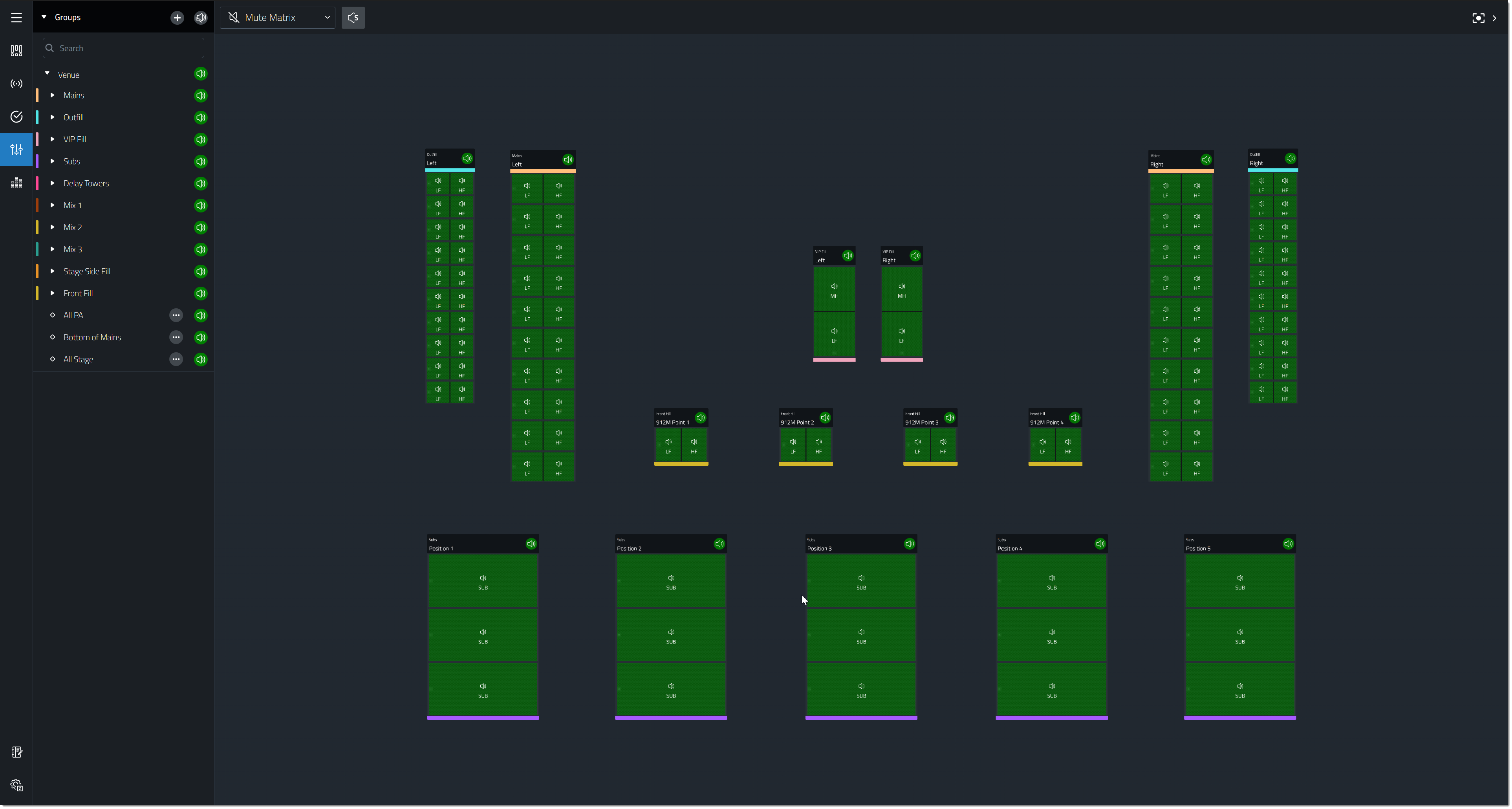
The Workspace in the center of the app is used to build and control the performance audio system.

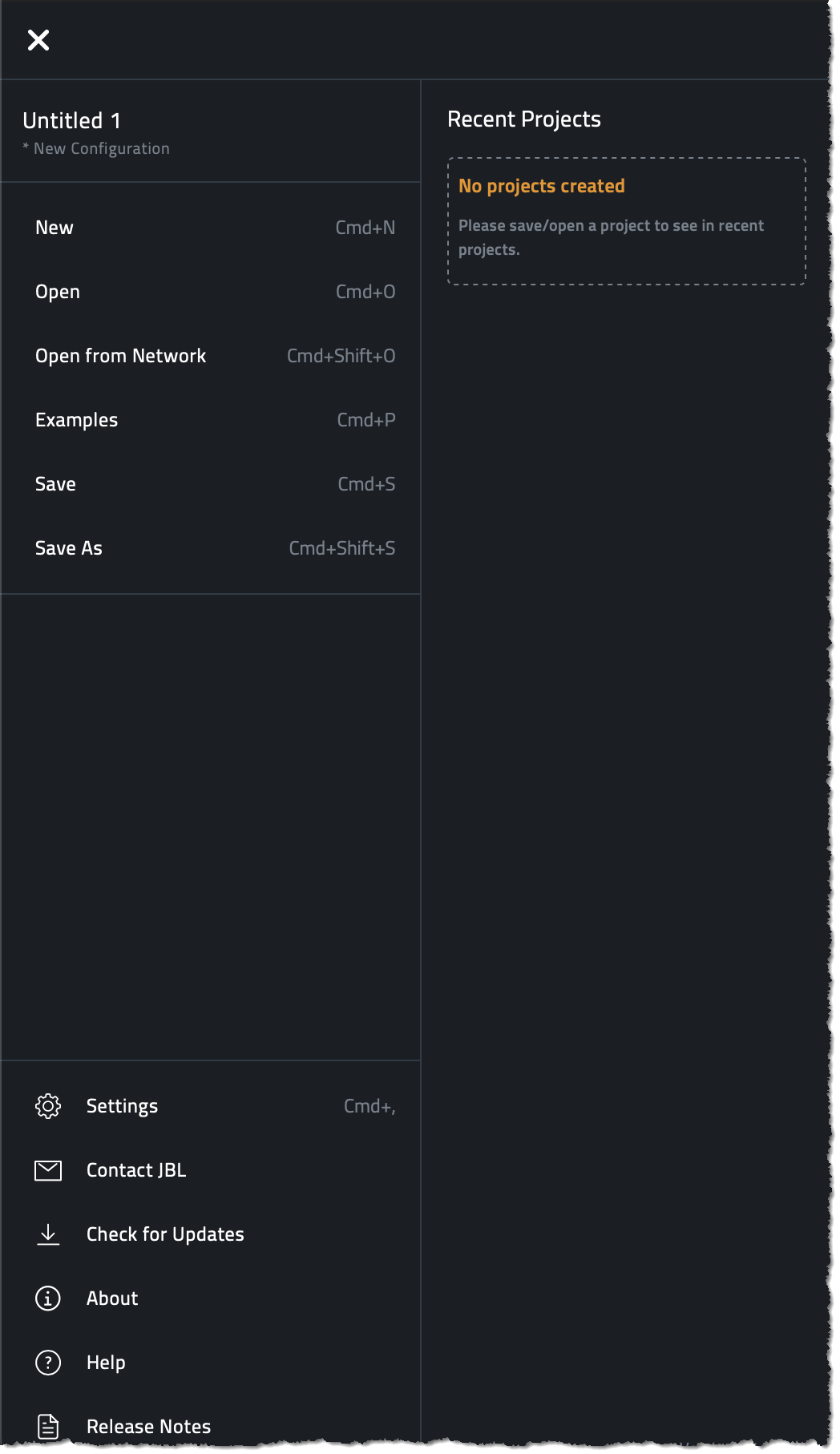
At the top of the screen is the Main Menu where you will find typical file operations, Settings, the current project, and recent projects. For items that have keyboard shortcuts, the key combinations are displayed next to the item.

Clicking the Settings button reveals application-level preferences and options such as Network Settings and display units. Clicking check for updates looks for the latest device firmware on the cloud and will cache a copy on your device of offline firmware updates.
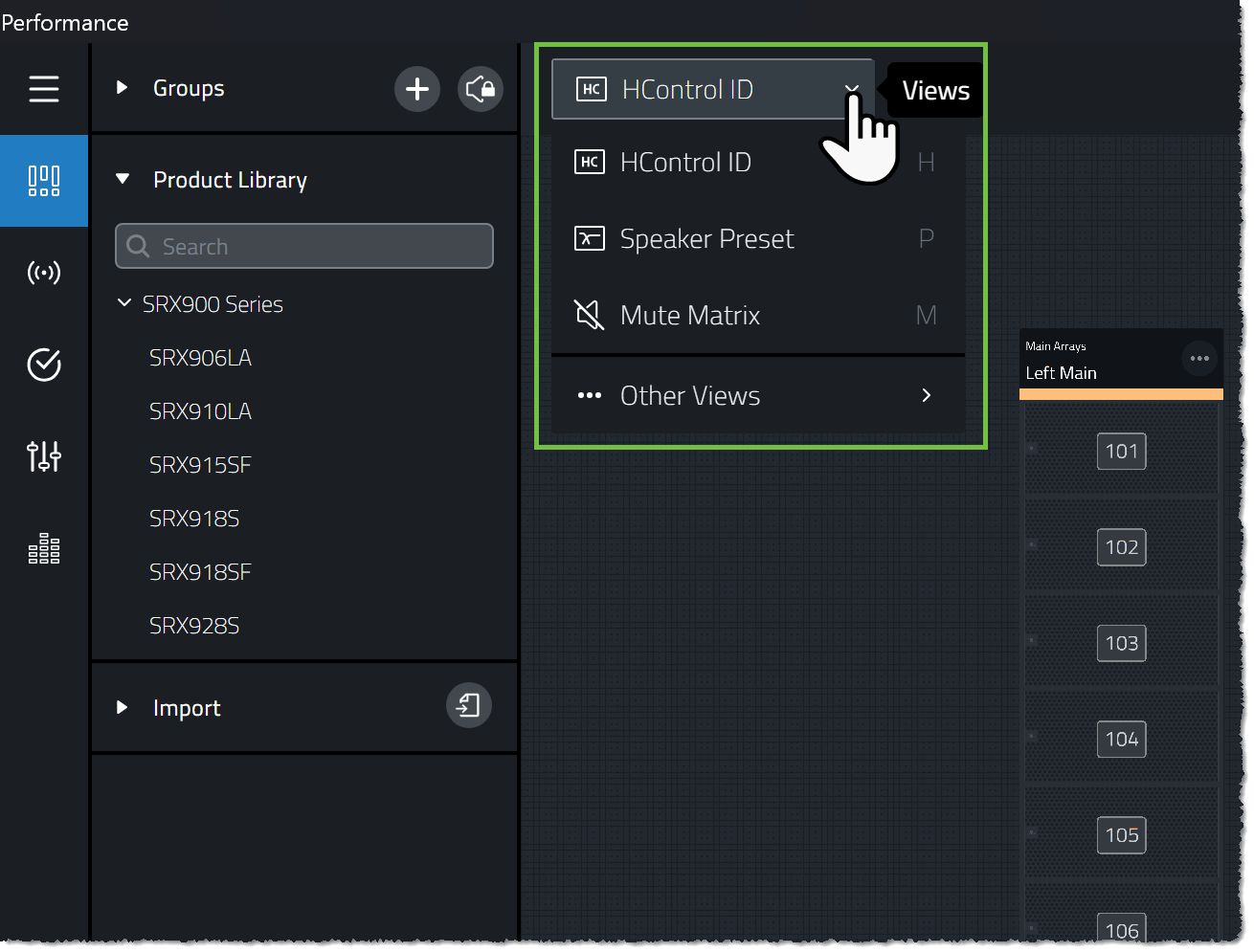
At the top of the far left side toolbar are the Application Modes. The application workflow steps us through each of these modes from top to bottom as we progress. Each mode is designed to bring the right tools to the surface within the app to accomplish a specific phase in system implementation. Performance will open a new file into Design Mode with the HControl ID View active.

Within most modes are a series of System Views that can be accessed from the dropdown at the top of the screen. Every view has a keyboard hotkey for quick access, and you can always find them printed next to the view name in the dropdown. Each view serves a specific purpose and changes the graphic overlay on top of the devices in the workspace to support a given function.
 Build Systems
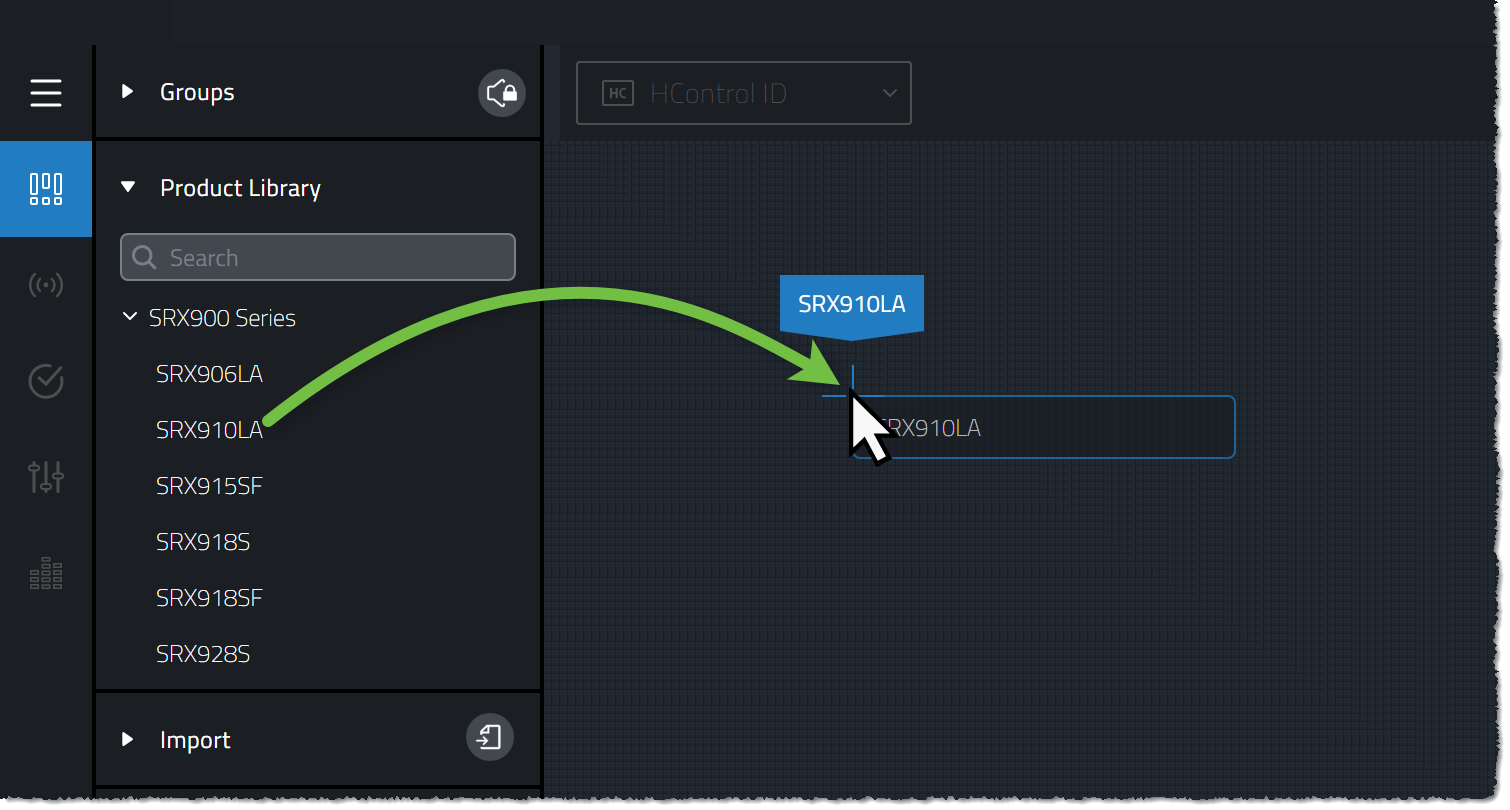
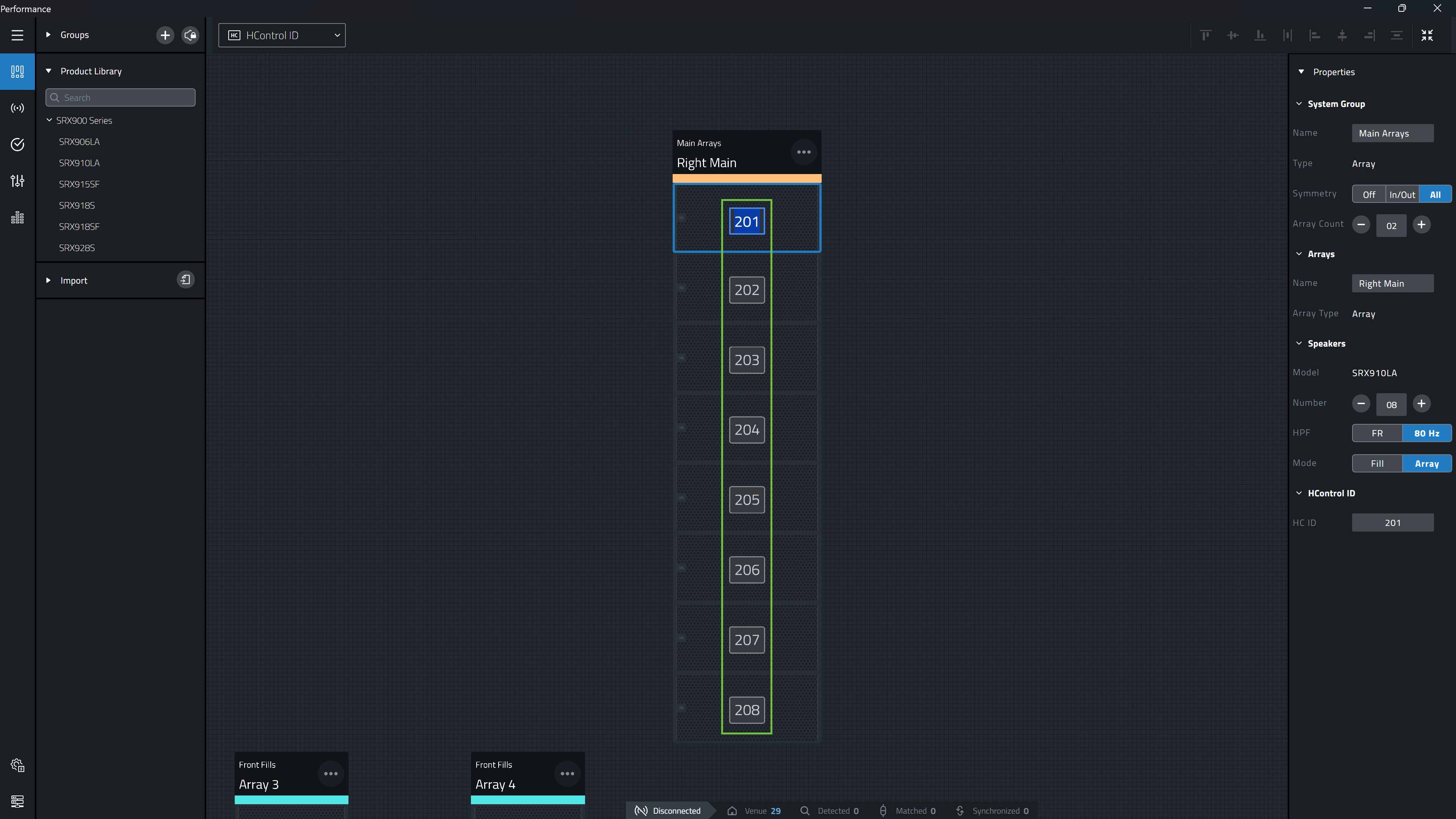
While in Design Mode, from the Product Library on the left, devices are dragged into the Workspace to build systems. Array and speaker quantity is set via a onscreen pop-up but can be adjusted later in the Properties Panel. Alternatively complete System Groups can be imported from JBL's Line Array Calculator or Venue Synthesis prediction software.
After the system has been built, logical HControl IDs can then be assigned to the devices. These unique Identifiers will be used to match the virtual devices in the system design to the real physical devices being deployed.
 Connect to Devices
Moving to Connect mode, the physical devices found on the network are matched with the virtual devices in the design, connected, and synchronized. Devices found on the selected network adapter will be listed in the left hand Discovered Devices list. Devices can be manually matched by dragging from the list on to a matching device in the workspace or Auto-matched to devices on the network with matching HControl IDs. Devices found on the network can be managed using the NetSetter Utility.
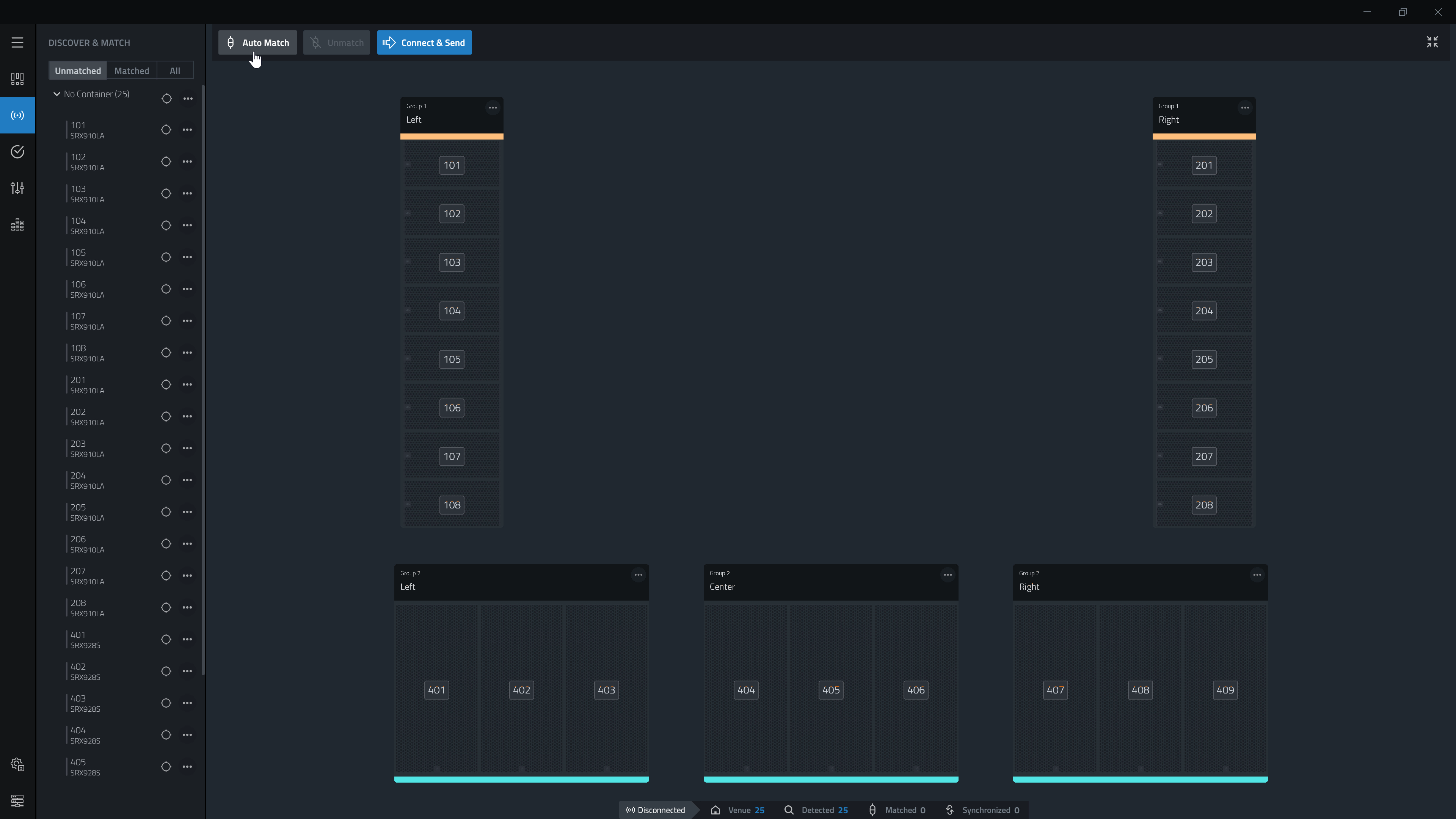
Once matched, clicking the  button will connect and synchronize the physical devices on the network with the virtual devices in the system design.
When the button is pressed, for all matched devices, Performance will send all of the device settings (Preset, Gain, EQ, Etc.) to the physical device. The Status Indicator on each device in the workspace should now be green indicating that the device is both connected and in sync. Any change to the device in the workspace in Test, Tune, or Show Mode will now update the Physical devices in real time.
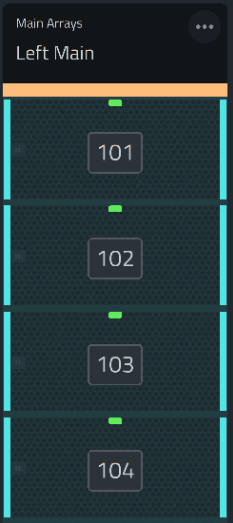
The Status Bar at the bottom of the Workspace will display the current Connection status of the Software to the physical devices.

 Test the System
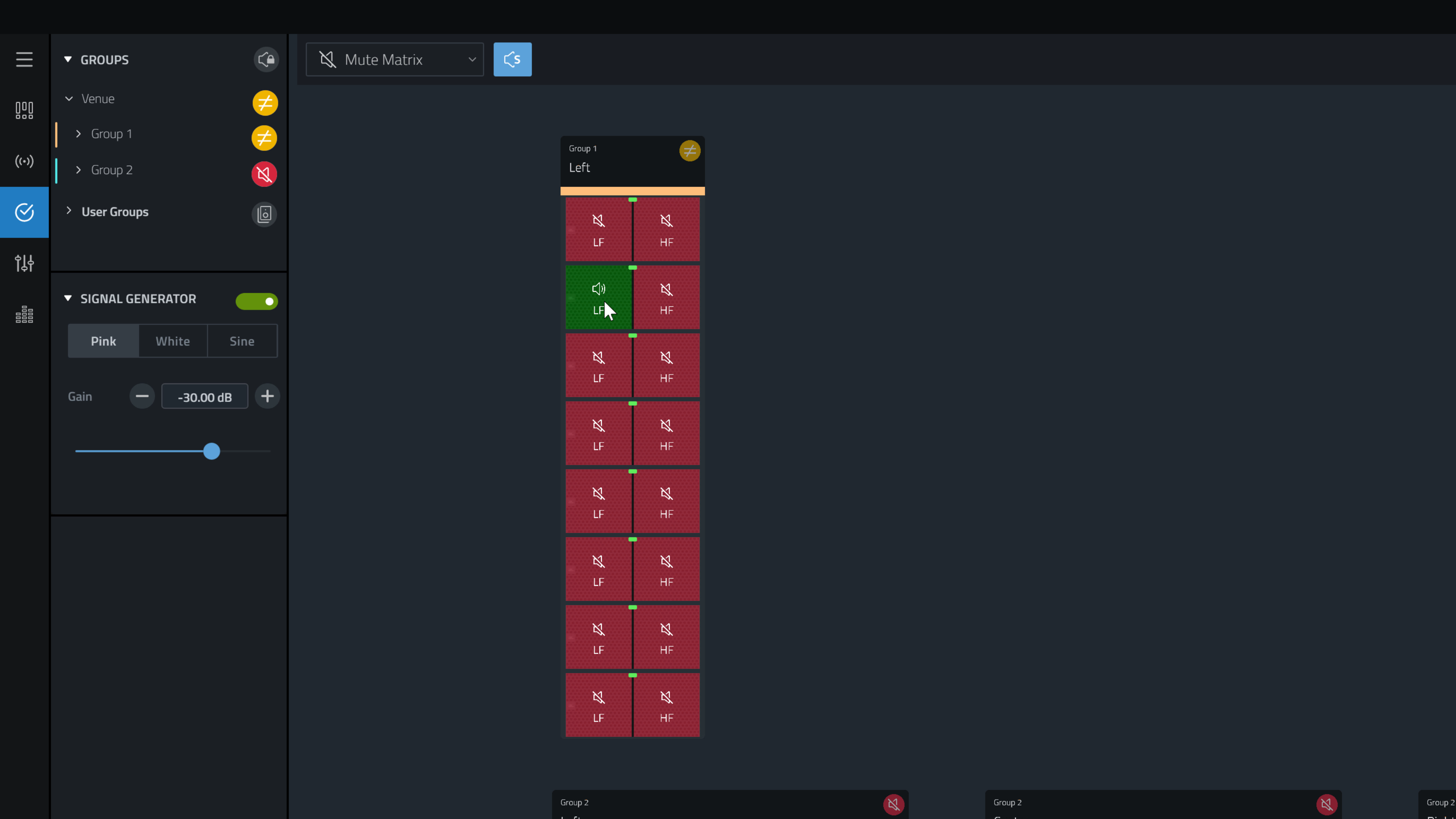
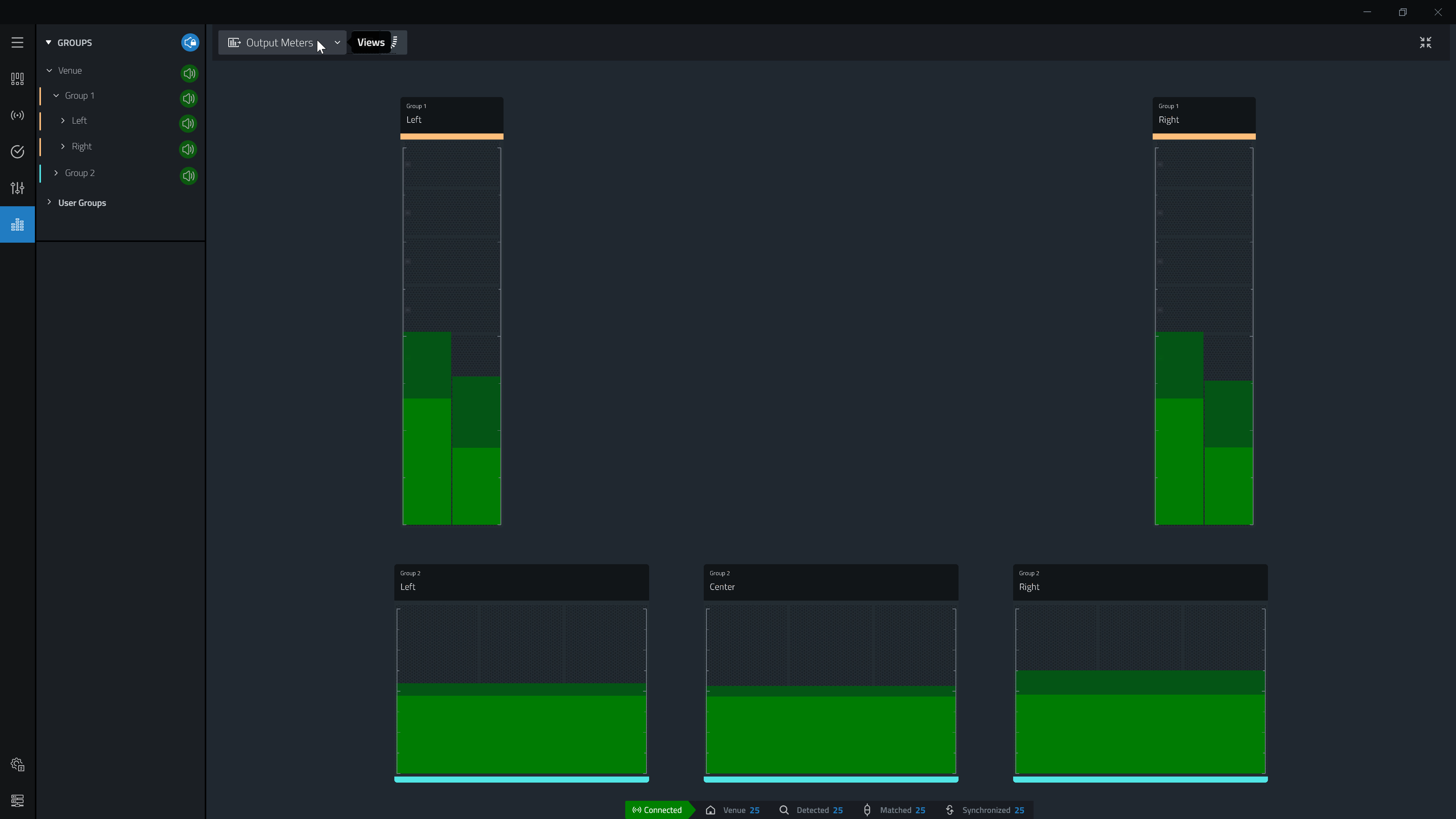
Test Mode provides the tools needed to test device functionality with a built-in Signal Generator and per bandpass mute matrix. As well as Input and Output Meter System Views for each device. Engage the Signal Generator and enable Mute Solo while in the Mute Matrix System view to audibly verify each device bandpass is correctly functioning.
 Tune the System
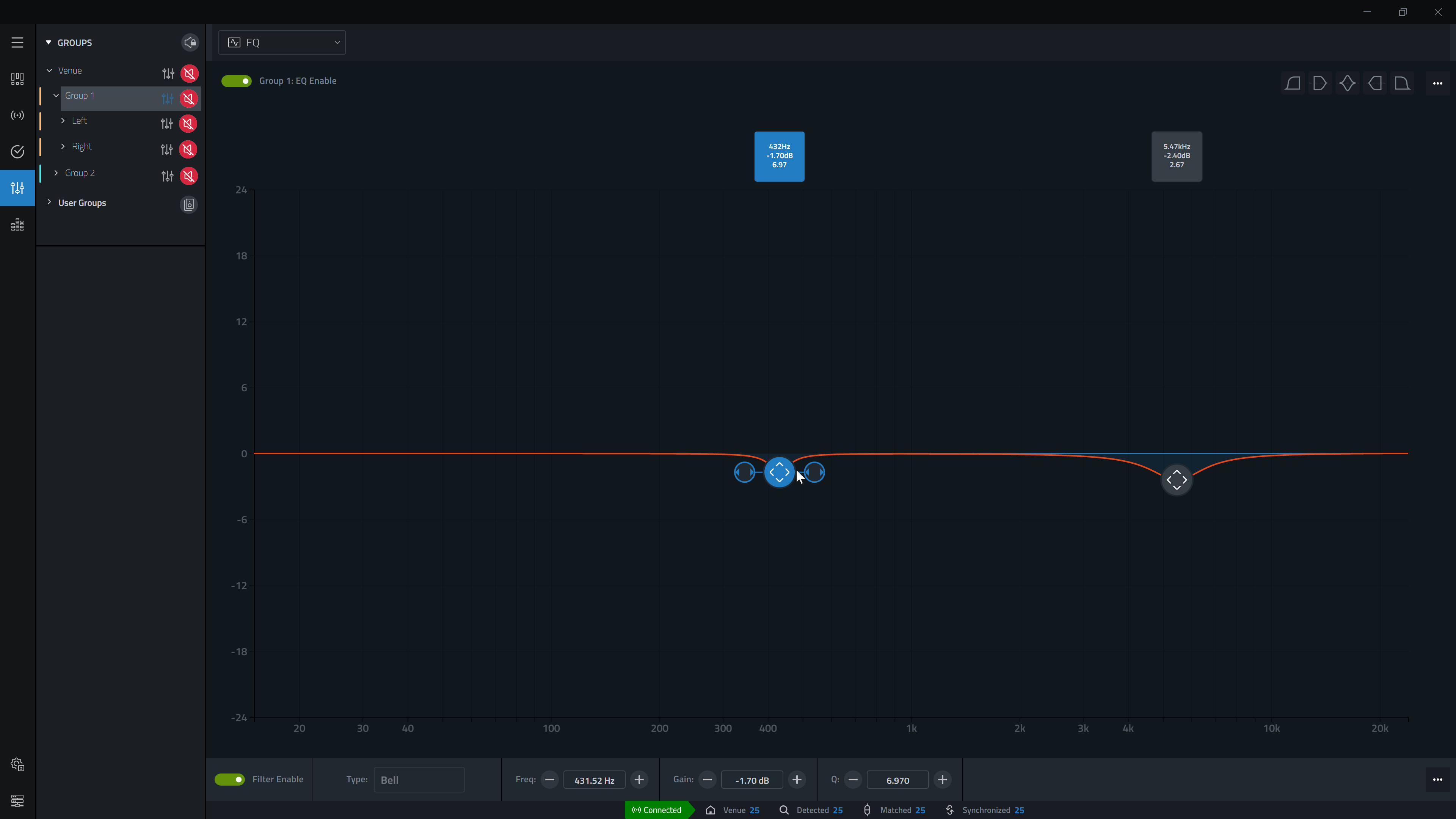
Next, users are able to enter Tune Mode where they can use the various Tune Mode System Views to modify device DSP parameters such as Gain, Delay, EQ, etc to acoustically optimize an audio system for use.
 Monitor the System
Show Mode allows the status and performance of every component to be monitored in real-time through the various Show Mode System Views. In addition to basic environmental properties such as line voltage and thermal headroom, speaker and amplifier health can be monitored
Examples
Example system files can also be found in the Main Menu and are a helpful tool in learning how to navigate the application.