Settings
Application level parameters such as unit types, environmental settings, and network connectivity can be defined here. The settings are divided into logical, organized categories and the dialog can be accessed from the Main Menu.
General
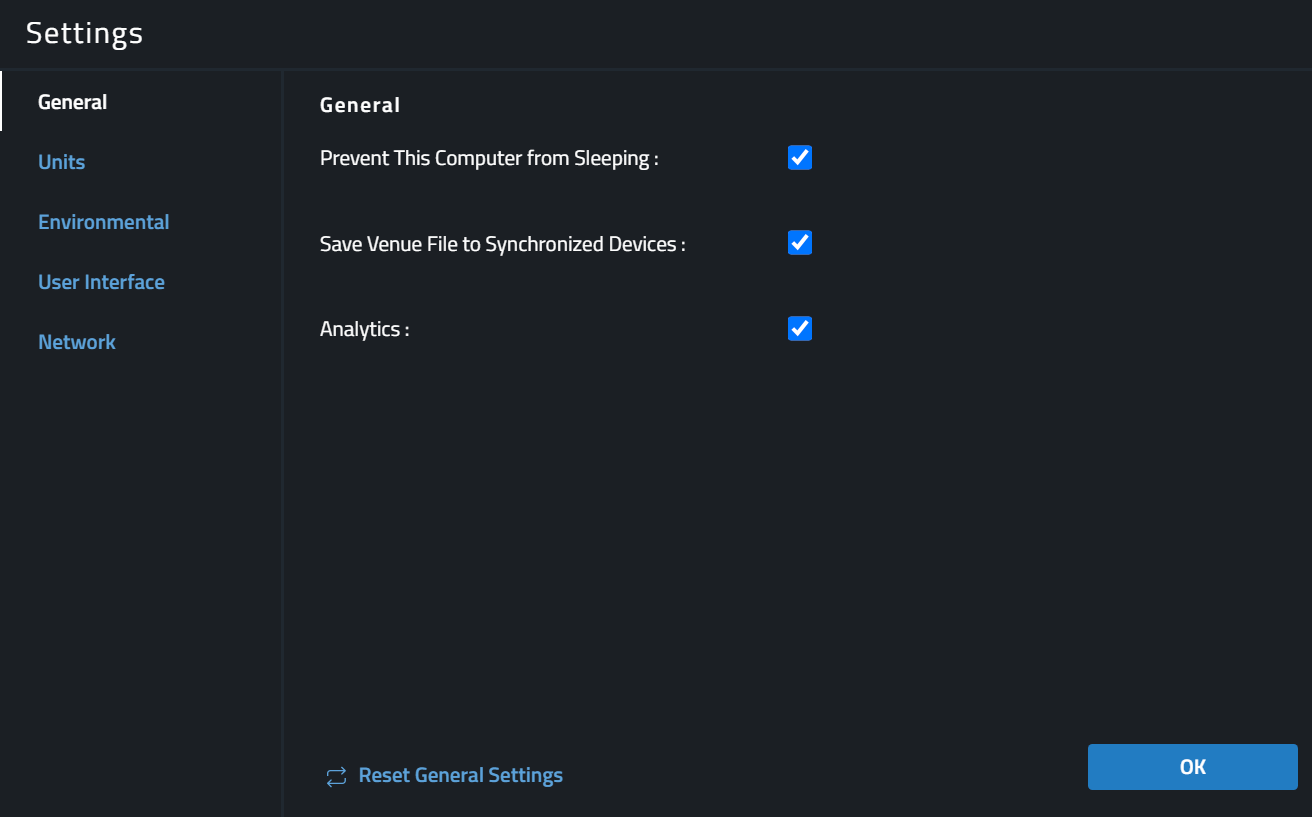
Prevent the Computer From Sleeping
When enabled, the computer or iPad will not go to sleep while Performance is open and running. When the switch is disabled, the device will sleep as per the regularly set sleep interval defined in the computer or iPad settings.
Save Venue File to Synchronized Devices
When enabled, after a connect and send, the application will automatically save a live version of the Venue File to all devices that are matched and in-sync. The local file is not effected by this feature. When disabled, the application will not attempt to auto-discover files from discovered devices and will not auto-save the Venue File to connected devices. See more HERE.
Analytics
This setting is currently only available on Windows devices. When enabled, this setting allows the collection of basic usage analytics that help to inform the development team about how people use JBL Performance. This information does not contain any personalized or identifiable information and helps with the further development of the application.
Units
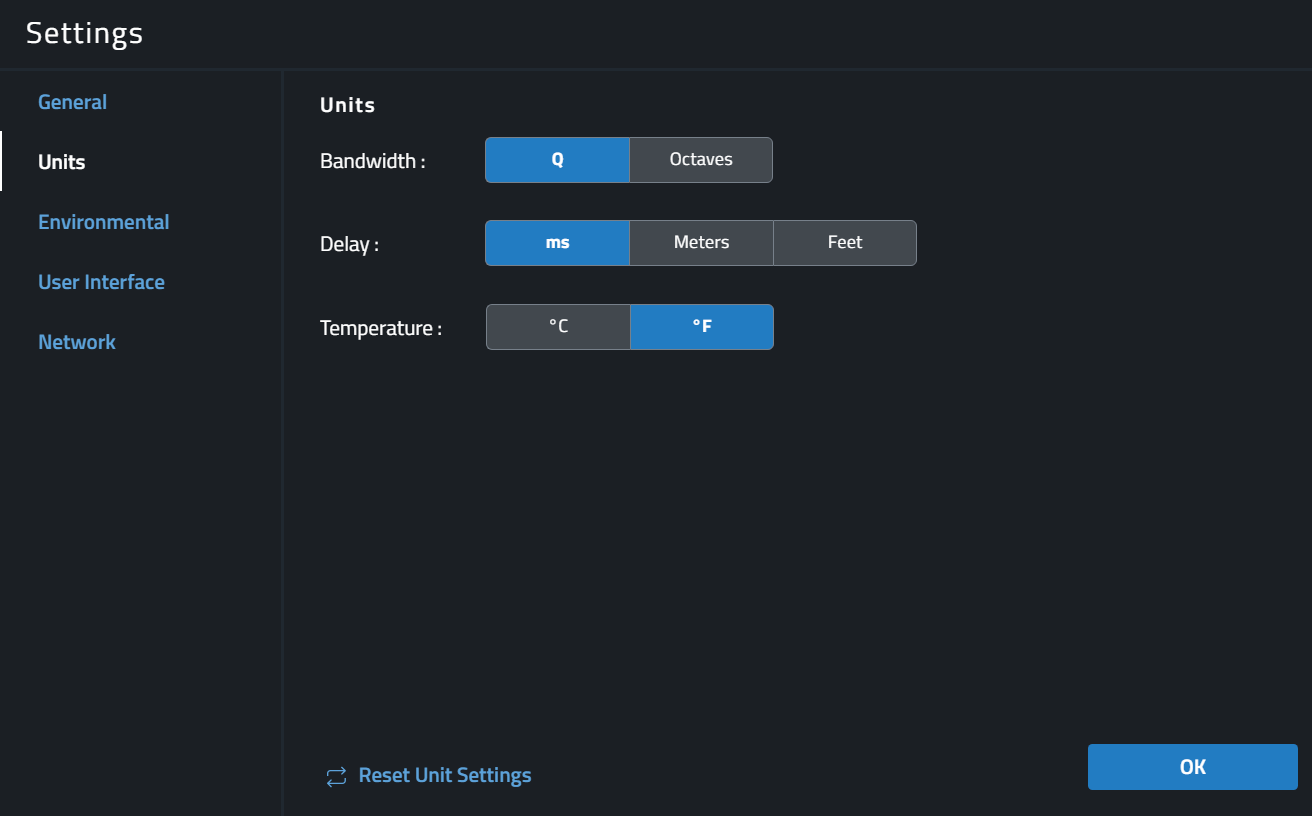
Bandwidth
Affects how EQ Bandwidth units are displayed in the EQ System View and the Device Panel. Units can either be in Q or Octaves, Reset to Default will reset the units to Q.
Delay
Affects how delay values are entered and displayed in the Delay System View and the Device Panel. Delay units options are ms (milliseconds), Meters orFeet. Reset to Default will reset the units to ms (milliseconds).
Temperature
This selection determines how ambient temperature is entered in the Environmental settings page in the Menu dialog. Unit options are either °C (Celsius) or °F (Fahrenheit). Reset to Default will reset the units to °C.
Environmental
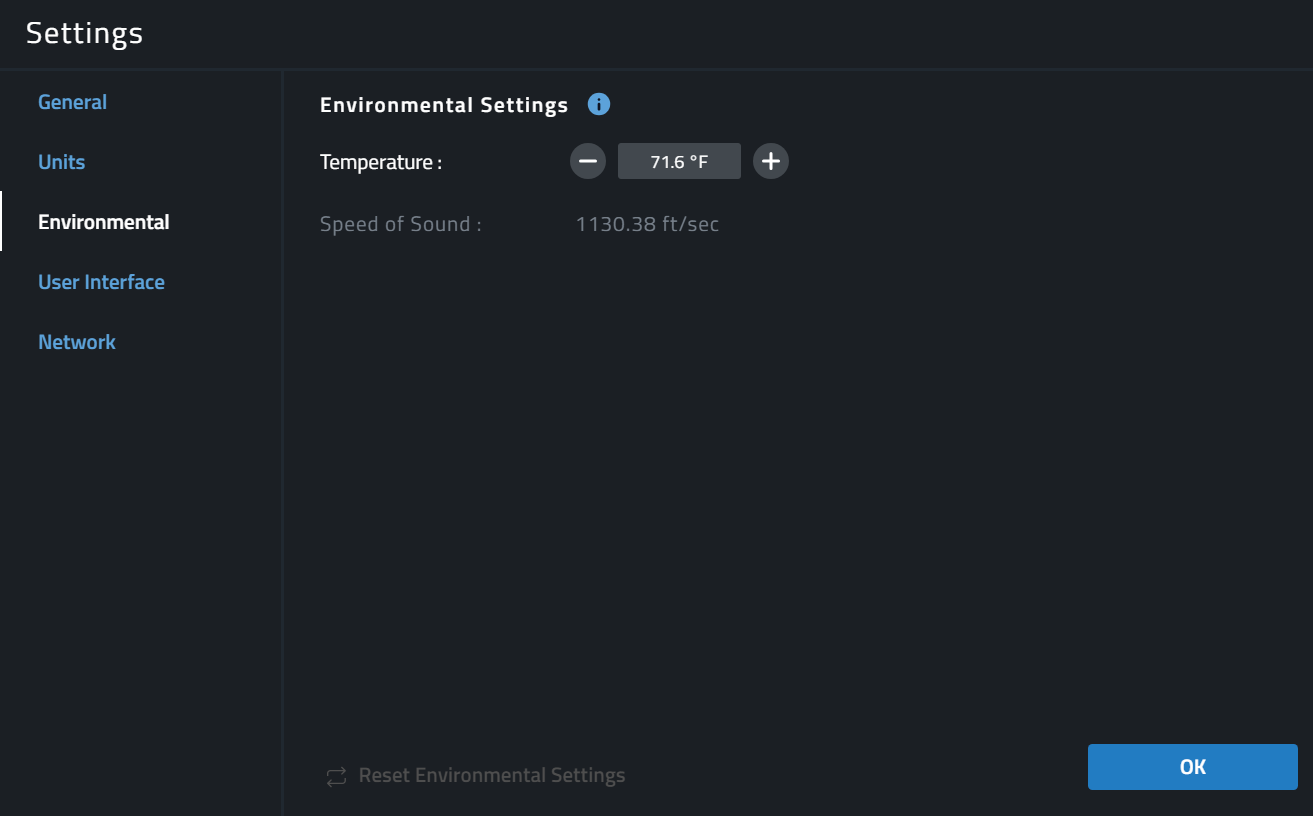
Temperature
This value will be used to calculate the delay time in ms, based on the propagation distance, measured in Feet or Meters derived from the speed of sound at a given temperature. This value is synchronized with the hardware. Temperature can be adjusted in steps of 0.01 degrees using the minus and plus buttons or a typed value can be entered by clicking in the display box. Unit display options are selected in the Units section of the Settings dialog. Reset to Default will reset the Temperature to 22 °C (71.6 °F).
Minimum Temperature allowed: -40.00 °C (-40.00 °F) and Maximum Temperature allowed: 70.00 °C (158.00 °F)
User Interface
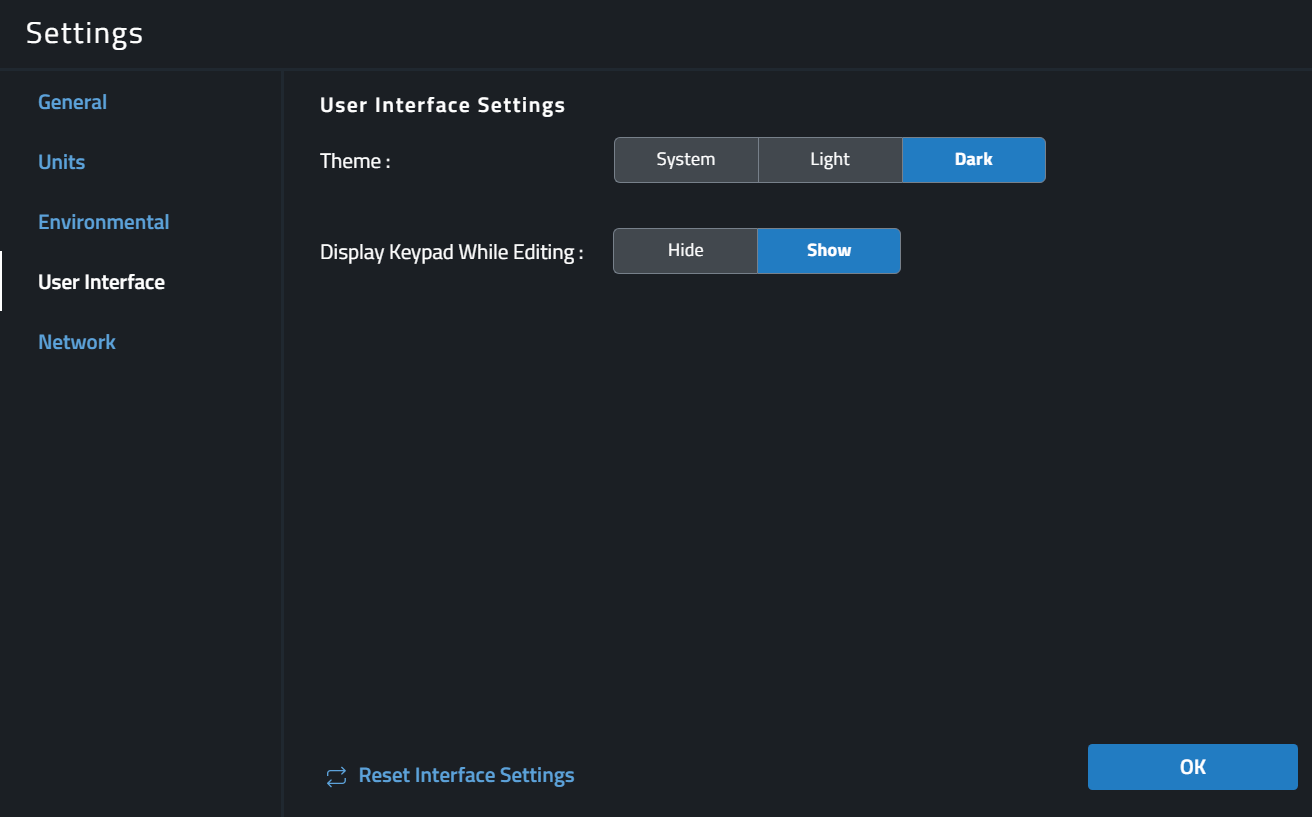
Theme
This setting controls whether the application uses Dark or Light mode. Dark mode is typically preferred in low-light environments, while Light theme is ideal for bright ambient lighting. When the System option is selected, the application theme will automatically follow the global theme setting of the device.
Display Keypad While Editing
This setting controls the visibility of the custom on-screen numeric keypad used to enter values in numeric fields like delay times or gain values. Reset to Default will reset the mode to always show the keypad.
Network
This page displays the assigned network adapters which Performance will use to communicate with devices. The active network's IP address should be in the same IP and subnet address range as the devices on the HControl network. Only selected adapters will be used by Performance to discover devices and communicate with them. It is recommended to only add the connections you intend to use to reduce network traffic and system overhead.
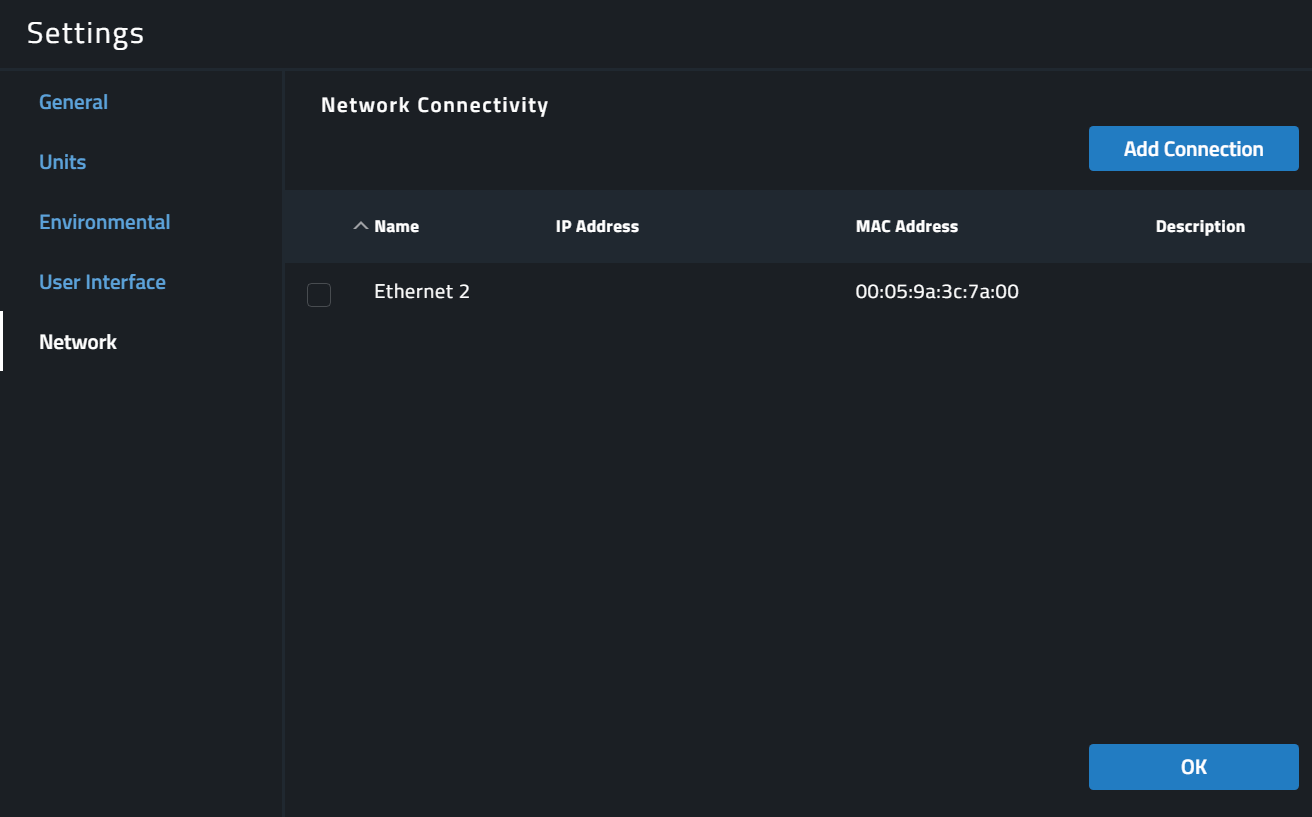
Performance will use all available connections to try to communicate with the internet for software and firmware updates.
Add Connection
This will bring up a pop up dialog which will allow the selection of available hardware connections that appear in the operating system. Select one or more of the found connections to use for HControl communication.
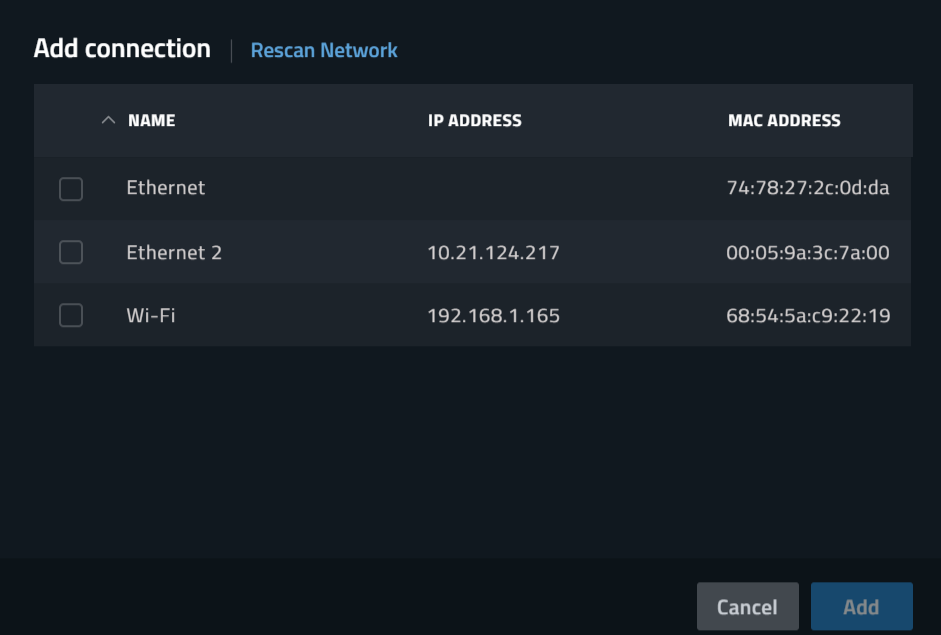
Clicking Rescan Network will scan the OS for changes in adapters.
Removing a Connection
Select one or more network adapters using the selection box and a Remove Connection button will appear, clicking this button will remove the selected network adapters.
