Workspace
The Workspace is the primary area of the software screen and contains a graphical representation of the audio system. Changing to any System View will change the overlay on top of the graphics in the Workspace.

Zoom
The workspace can be zoomed in our out using the following methods
-
CNTRL+Scroll Wheelon a mouse -
CNTRL++andCNTRL+-on a keyboard. -
Double Click on empty space
-
Selecting something in the space and pressing
Space Barwill zoom to the selection. PressingSpace Baragain will zoom back to the venue's extents.
Touch
-
2-finger pinch gestures are supported for all track pads and touch screens for zoom.
Focus Presets
Focus Presets enable quick focus on user defined areas of the workspace.
Pan
The workspace can be panned using the following methods
Vertical Pan
-
Scrollon a mouse -
Up ArrowandDown Arrowon a keyboard
Horizontal Pan
-
ALT+Scroll Wheelon a mouse -
Left ArrowandRight Arrowon a keyboard.
Touch
-
2-finger drag gestures are supported for all track pads and touch screens for pan.
Object Selection
Basic device selection described below. Selected devices may also highlight other devices in the workspace depending on various parmaters including Array Type, and Symmetry. See Smart Select for more information.
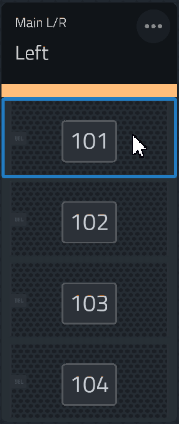
To Select a single device
Click anywhere on the face of that device.
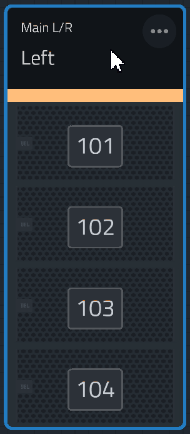
To Select an Array
Click on the header of the Array.
To Select Multiple Devices
-
SHIFT+ Select the devices. -
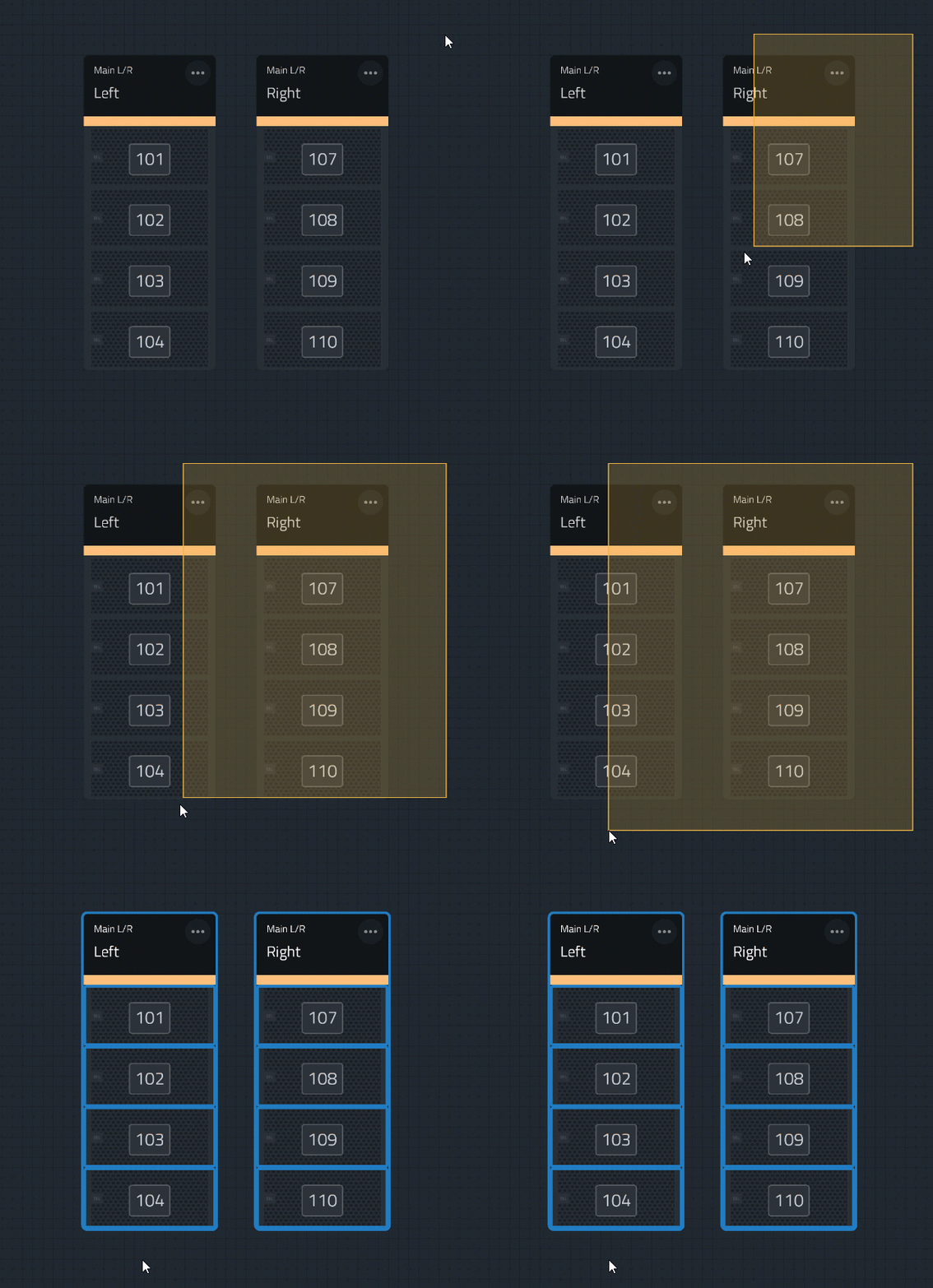
Click and drag from left or right. See click and drag behavior below.
Multi-select Click and Drag Behavior
-
Click and drag from the left to the right- creates a blue box and only selects devices that are completely engulfed by the box.

-
Click and drag from the right to the left - creates a yellow box and selects everything that the box touches.
Touch
-
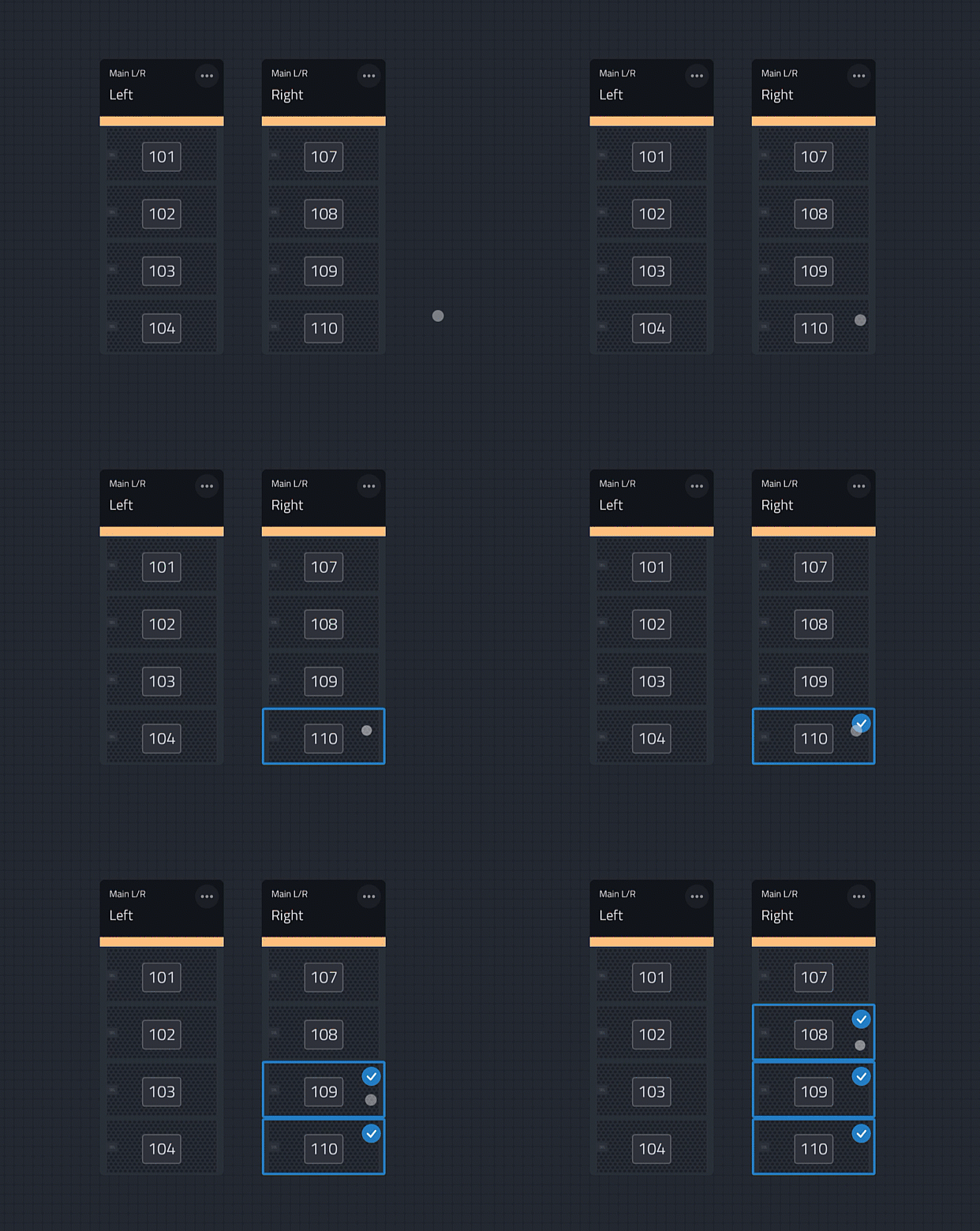
Selecting with touch can be done using the above behaviors but also with a long-press. Where available this will enter a multi-selection mode where a blue check mark will appear on the selected item. Once this mode is entered, subsequent taps will be considered selections until a press is detected off of a selectable item, like the background.