Design Mode
Design Mode is the first step in building and ultimately deploying a new system in Performance. The objective of Design Mode is to populate the Workspace with virtual devices that represent the real devices that make up the audio system being deployed. Logical HControl ID addresses are then assigned to the devices to aide in system synchronization. Device properties such as speaker preset, crossover settings, orientation and mute state can be defined in various Design Mode System Views before moving to Connect Mode to synchronize the real devices with virtual devices.
Design Mode Screen Overview

| Name | Function | |
|---|---|---|
| 1 | Groups Panel | Provides selection and mute controls at various grouped resolutions. |
| 2 | Product Library | Devices that can be added to the Workspace to build a design. |
| 3 | Import File | Import complete design files from JBL Line Array Calculator or Venue Synthesis |
| 4 | Design Mode System Views | Select with the drop-down, each View changes the controls overlaid on the devices in the workspace. |
| 5 | Tools | Used for quickly and neatly arranging objects within the workspace or setting Focus Presets. |
| 6 | Properties Panel | Displays various settings for a selected Device or System Group. |
Design Mode Views
| View | Shortcut | Use |
|---|---|---|

|
H | This is the default workspace view in Design Mode, use this view to add devices to the workspace and set device HControl ID numbers |

|
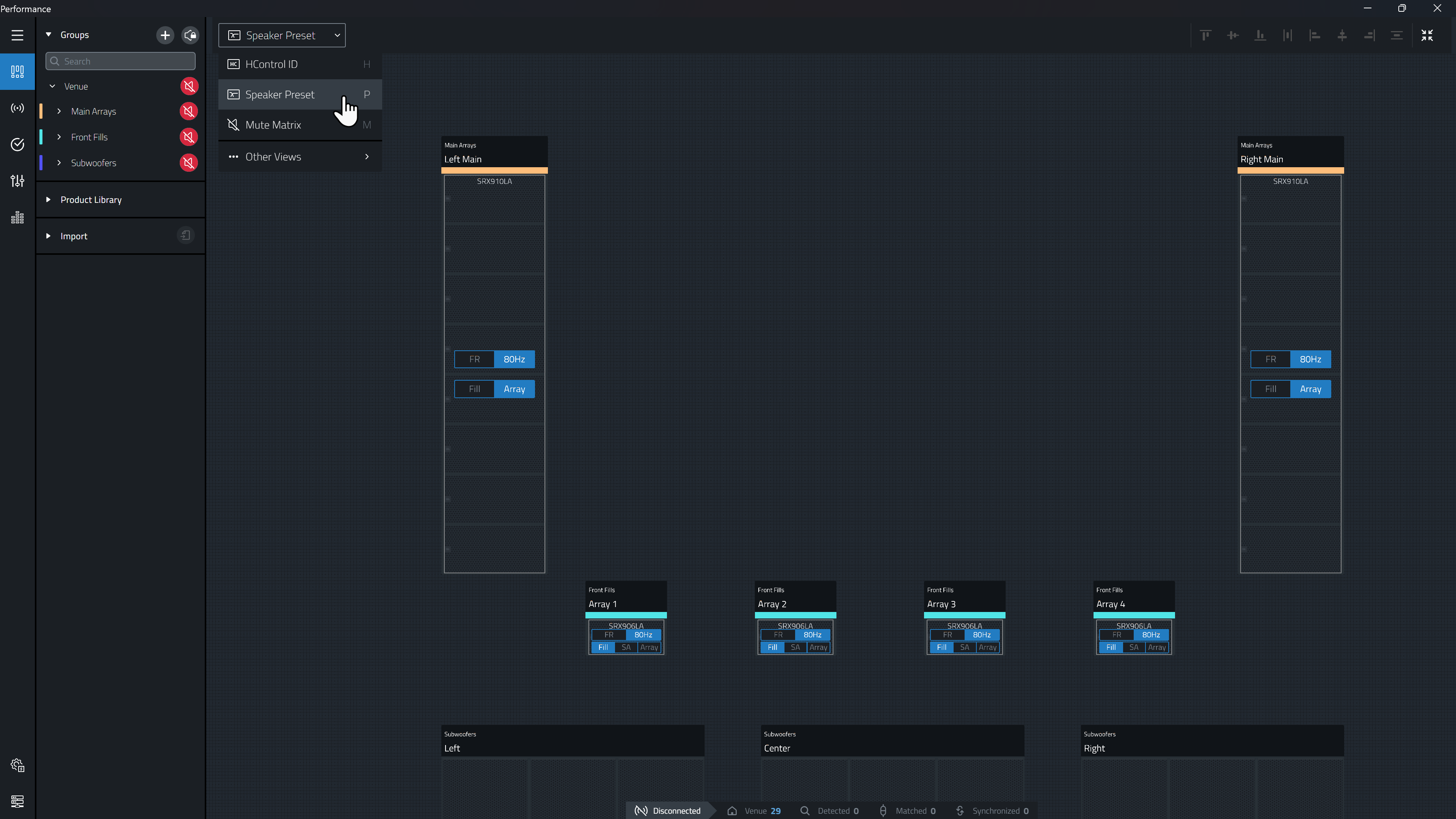
P | Change Speaker Presets, Speaker Crossover, and Subwoofer Orientation |

|
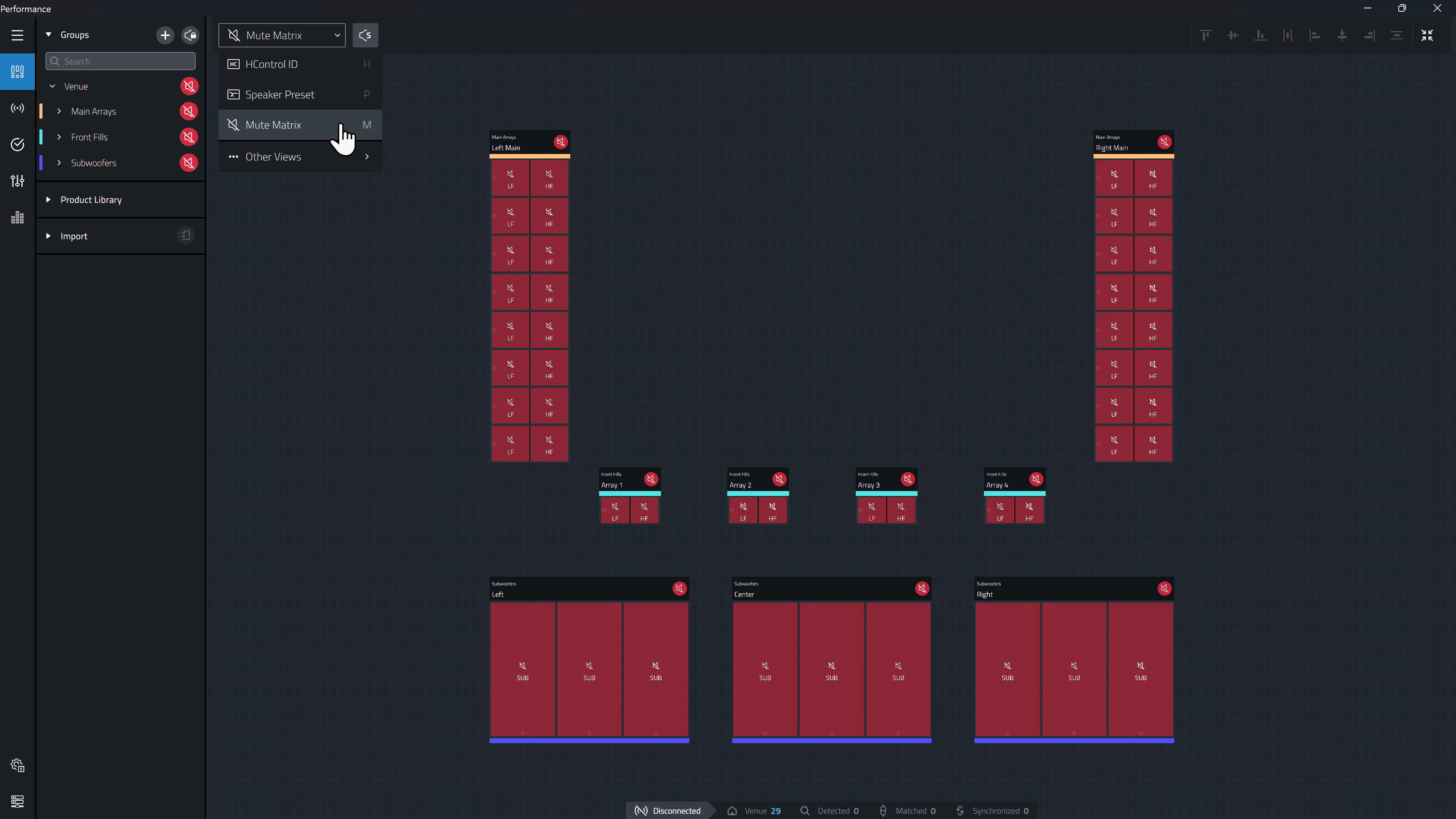
M | Use this view to mute or un-mute Groups, Arrays, or individual bandpasses. The Offline mute state defined here will be synchronized to the devices when connected. |
Adding Devices to the Workspace
To add devices to the workspace the HControl ID View must be active. Devices can be manually added to the workspace to create systems or complete designs can be imported from JBL Line Array Calculator or Venue Synthesis acoustic prediction software.
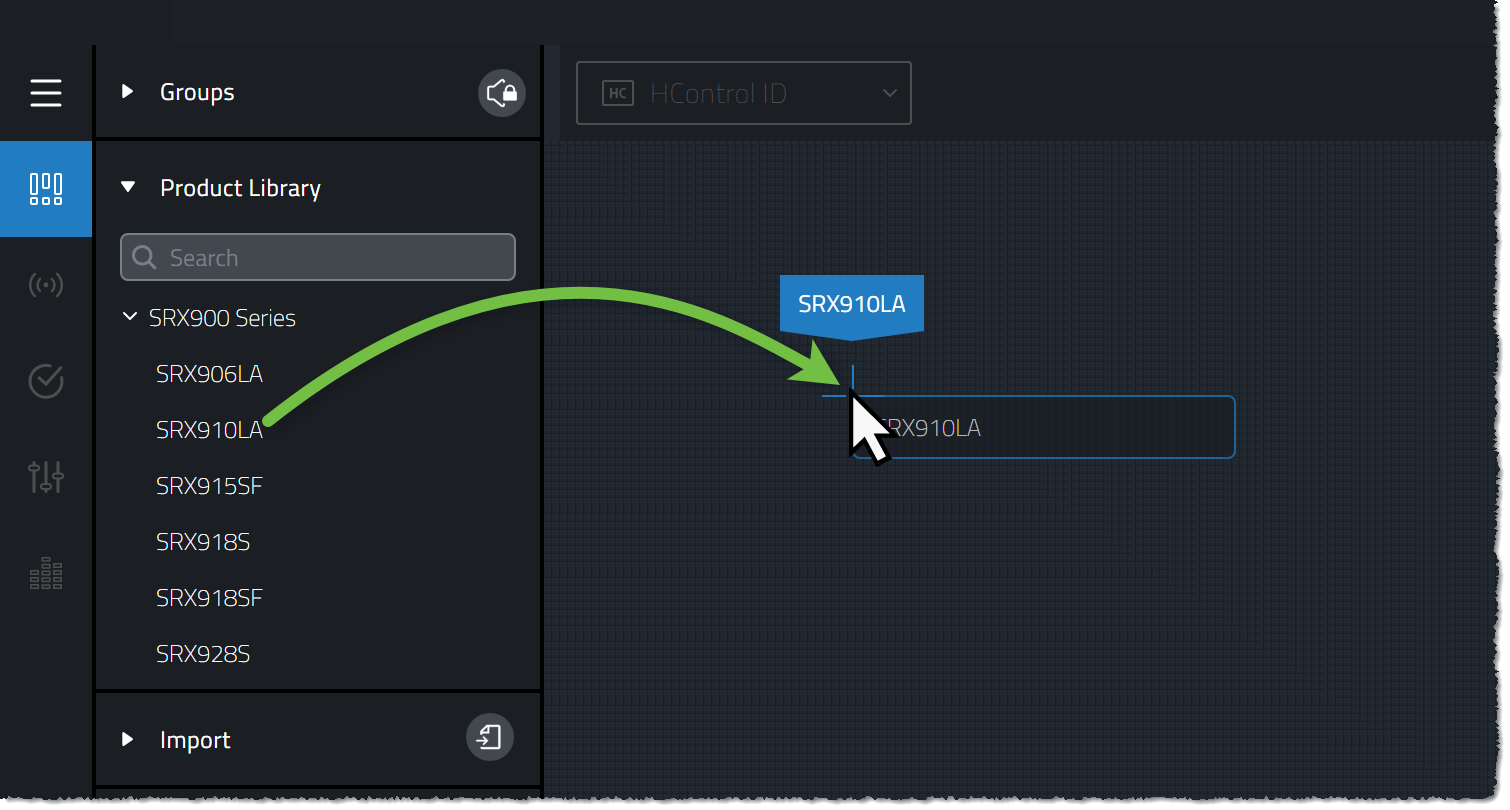
To manually create designs, drag devices from the Product Library into the workspace.
A simple on-screen utility will pop-up to guide users through setting array and speaker quantity as well as orientation (when applicable). These parameters can be adjusted later in the Properties panel.
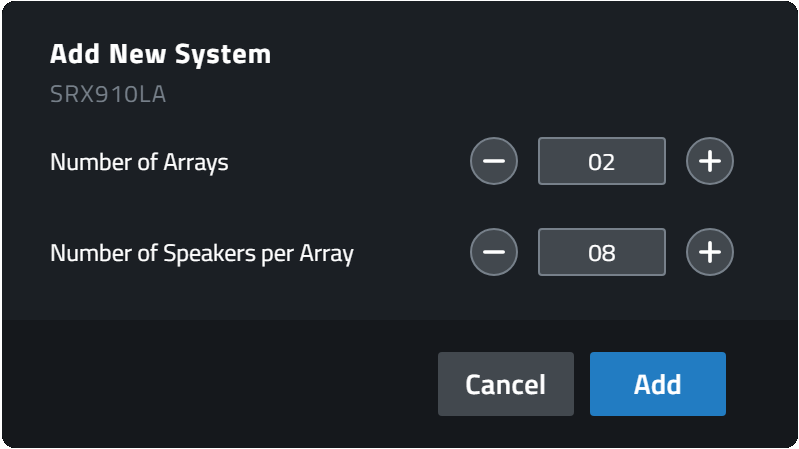
Each time a product is dragged from the library into the workspace it creates a new System Group.
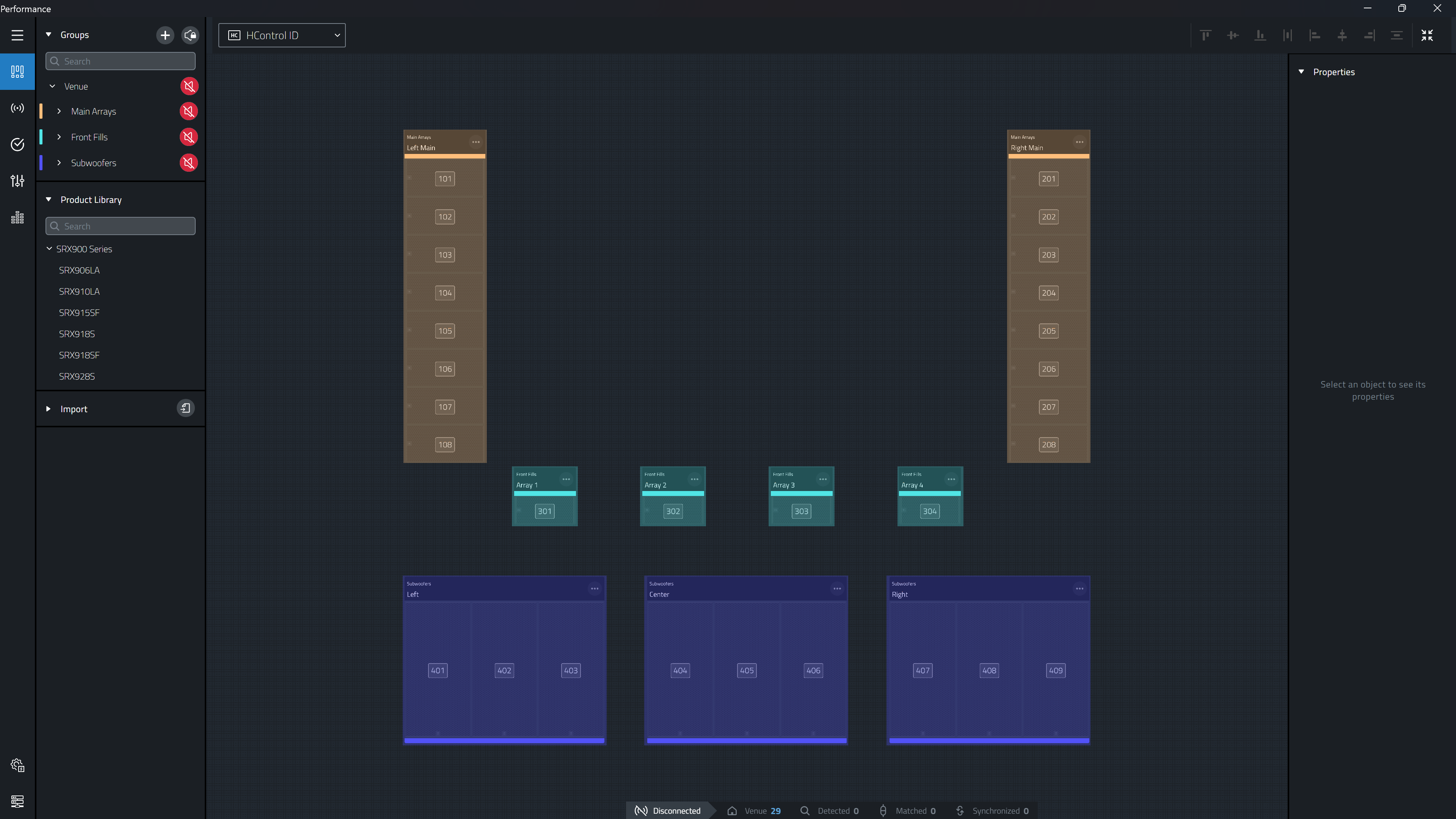
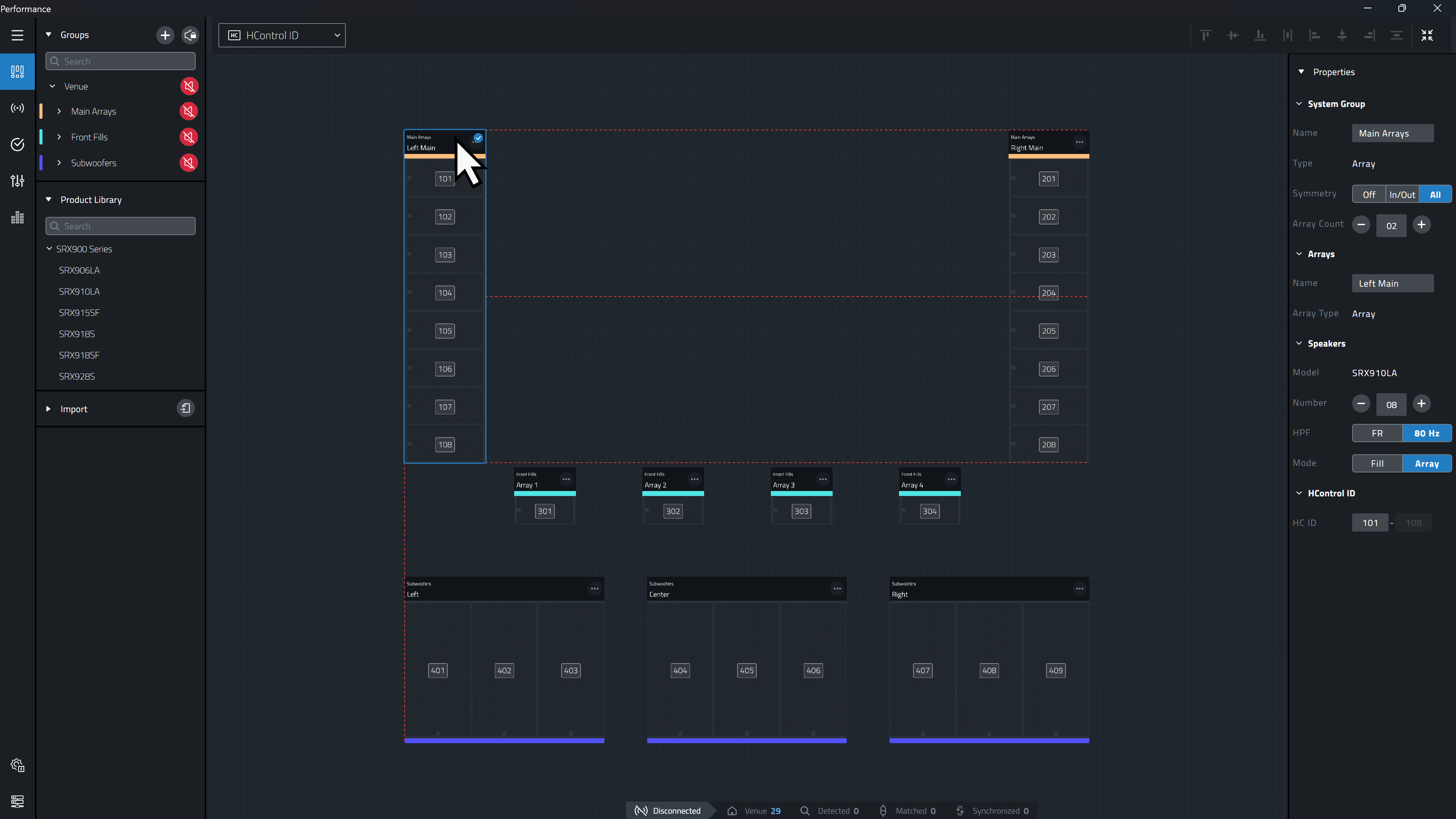
System Groups can contain one to multiple Arrays of like-products in like-configurations that are generally grouped into similar functions. For example one System Group would contain the Left and Right Main arrays and another System Group could contain (4) Arrays of (3) ground deployed subwoofers. The image below highlights the various system groups with matching colors.
Arranging Devices in the Workspace
With the HControl ID View active, each Array in the Workspace can be arranged as desired by clicking the Array header and dragging the Array to the desired location. The location of Arrays in the Workspace have no effect on the functionality of the device but rather serves as a tool for the user to better organize the devices in a logical representation of the physical system being deployed.
Various Alignment Tools exist to make it easy to visually align items within the workspace.
Setting Device HControl IDs
With the HControl ID System View active, each HControl enabled device in the workspace will display an ID. The HControl ID will be used later in Connect Mode to match the virtual device in the design to a physical device found on the network. This ID can be changed if required in Connect Mode or by returning to Design Mode. There is no right or wrong way to set HControl IDs for an entire system however, it is generally agreed upon that logically configuring IDs into recognizable array blocks will make working with an online system easier. More information on how to set device HControl IDs can be found in the HControl ID View page.

Setting Speaker Presets
Changing to the Speaker Preset View allows configuration of the device presets. If the system is Offline, this preset selection will be pushed to the physical device once synchronized. If the system is online, the preset selection will by instantaneously updated on the matched device. The preset, crossover and orientation settings available are device dependent, more information on the options found within this view can be found in the User Manual of each device.
Setting Offline Mute State
Before going online, the mute state of devices can be toggled in the Mute Matrix View or toggled from the Groups Panel. The Mute state set in Design Mode will be pushed to the physical devices once connected and synchronized.
The default state is muted.
Adjusting Properties
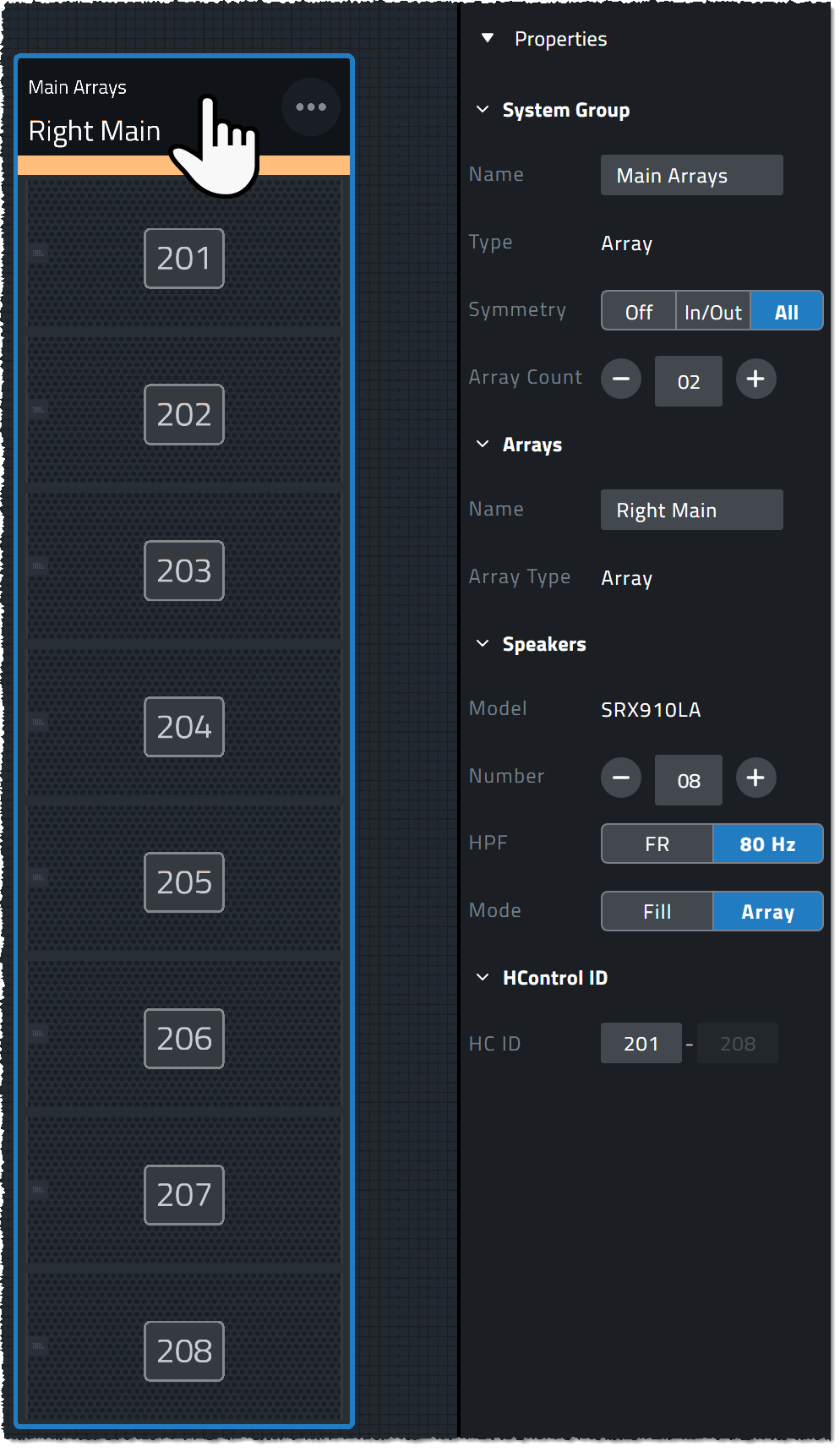
System Group parameters such as HControl ID, preset, symmetry, array size and quantity can be adjusted after being added to the workspace from the Properties Tab in the Modal Tool Bar by selecting System Groups, or individual devices.