
Mute Matrix View
The Mute Matrix view provides a per-bandpass mute control for every device in the workspace as well as a mute control for all devices within an array. The mute controls in this view function similar to the mute controls in the Groups Panel. A red color indicates a bandpass is muted and a green color indicates a bandpass being un-muted. Changes to any devices mute state while connected and online will make the change to the physical device in real time.
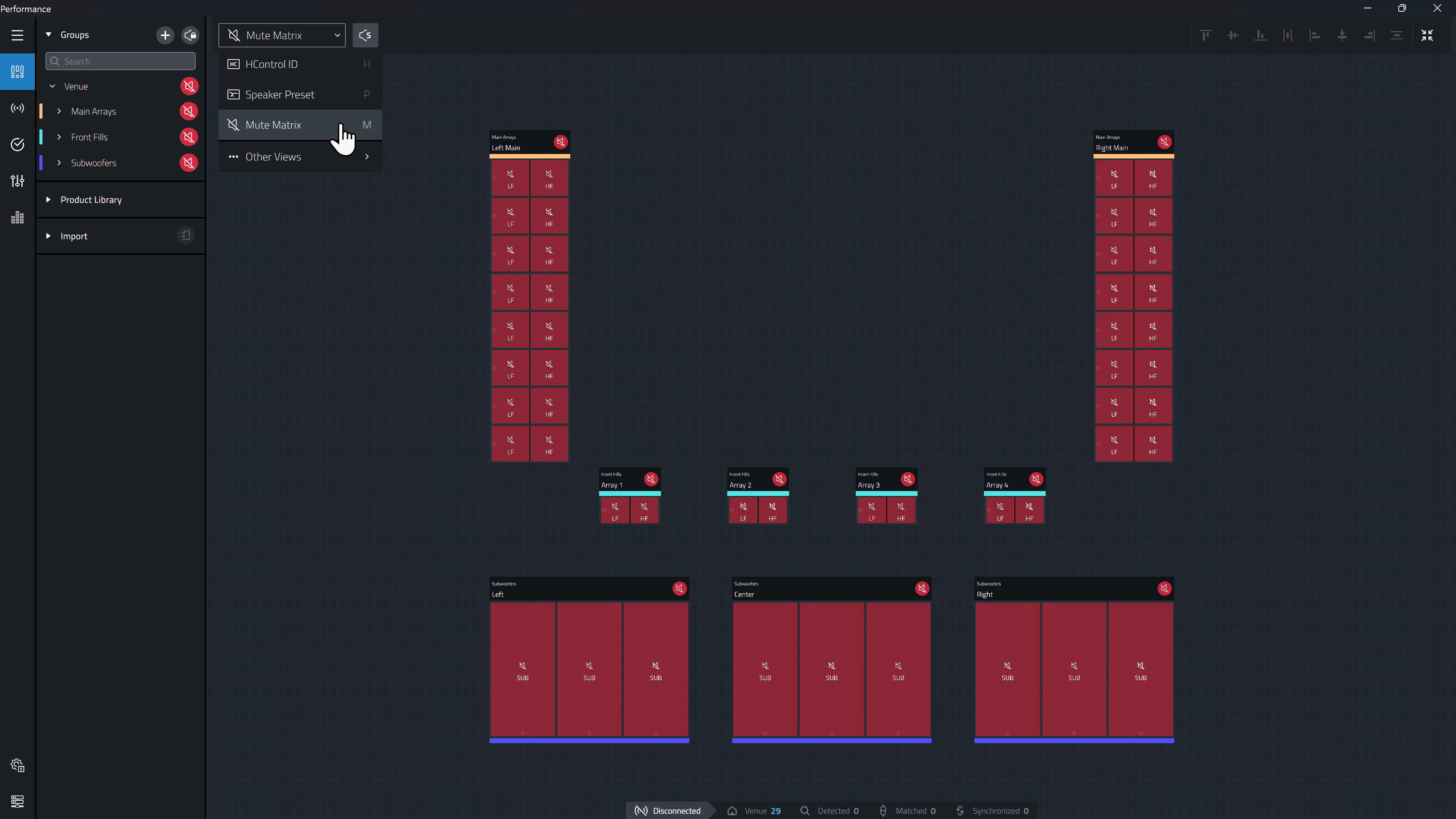
Bandpass Controls
Each device bandpass can be selected to toggle the mute state.
| Image | State |
|---|---|

|
Both bandpasses of the device are muted. |

|
The HF bandpass of the device has been un-muted. |

|
Both bandpasses of the device are un-muted |
Array Controls
The mute state of an entire array can be toggled in Mute Matrix view, by clicking the  icon in the array header.
| Image | State |
|---|---|

|
All devices within an array are muted. |

|
All devices within and array are un-muted. |

|
Devices within an array have both muted and un-muted states. Clicking this control will mute all band passes. |
Mute Solo Button

Clicking the mute solo button allows users to quickly click through each bandpass in the workspace to audibly verify the device functionality. The moment Mute Solo is enabled, all devices in the workspace will be muted, regardless of their current mute state. This is similar to a "Solo In Place" function on an audio console. Clicking on any device bandpass will un-mute that bandpass, and clicking on that same bandpass again will mute it. If the user clicks any bandpass other than the one currently un-muted, the bandpass that was previously un-muted will mute and the bandpass that is clicked will un-mute. Only one bandpass will be un-muted at any time will Mute Solo enabled. To turn off Mute Solo, click the icon at the top of the workspace again. The Mute Solo control is visible in Test Mode.
