Updating Device Firmware
Performance manages supported device firmware through NetSetter.
Downloading the Latest Device Firmware
When the application is opened and an internet connection is present, Performance will check for updated device firmware. It is also possible to manually check for updated device firmware from the Main Menu. In either case, if new firmware is available, the application will prompt you to download the latest version. The updates in the new version of device firmware can be reviewed by selecting the View Readme button.
The software is designed and tested to target a specific version of firmware for each compatible device. If a firmware version is not compatible with the installed version of the application, it will not be able to connect to the device until it matches the target version. Either update the device firmware to the compatible version or change the version of the software you are using to match with the firmware version on the devices.
To identify the compatible versions of the software and firmware, please check the release notes. Older versions of the software are available on the JBL Performance website for Mac and PC.

Checking Devices for Firmware Updates
Once the latest firmware is downloaded, Performance will automatically check that any device found on the network has the latest version running. If any device present on the selected network adapter has out of date firmware, a banner will pop up in the workspace with an indication to check NetSetter.

Once in NetSetter, devices with incompatible firmware will show a red firmware update icon to the right of the firmware version(s). Compatible, but out-of-date versions will show a yellow icon.

Updating Device Firmware
Using the multiselect boxes, select all the devices to update the firmware on.
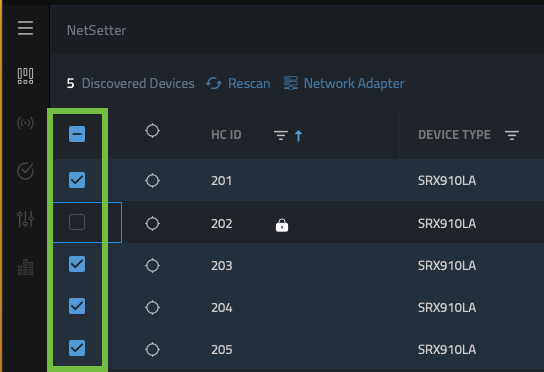
In the Multiselect toolbar at the bottom of the screen, select the new version of firmware.

The selected devices firmware boxes should now have an orange box around them, indicating a change is pending.

Select the  button at the bottom of the window to begin the firmware update.
A warning will pop up, read it carefully and select OK when ready to proceed.

The device status column will change to update you on the progress of the firmware update.

After transferring the file, and installing the update, the device will reboot, once the status indicates the device is in a running state, the firmware update is now complete.
Note : In some cases, firmware can not be downgraded. This happens when there is a possible hardware incompatibility with the firmware and the hardware. When this happens, the device will attempt to install the firmware and it will fail to install and instead keep the existing version.
