
Connect Mode
After a virtual design has been completed in Design Mode, the next step in the Performance work-flow is to connect to the real physical devices on the network and synchronize the virtual device parameters from the design with the physical device. This process is completed easily in Connect Mode.
Connect Mode Screen Overview
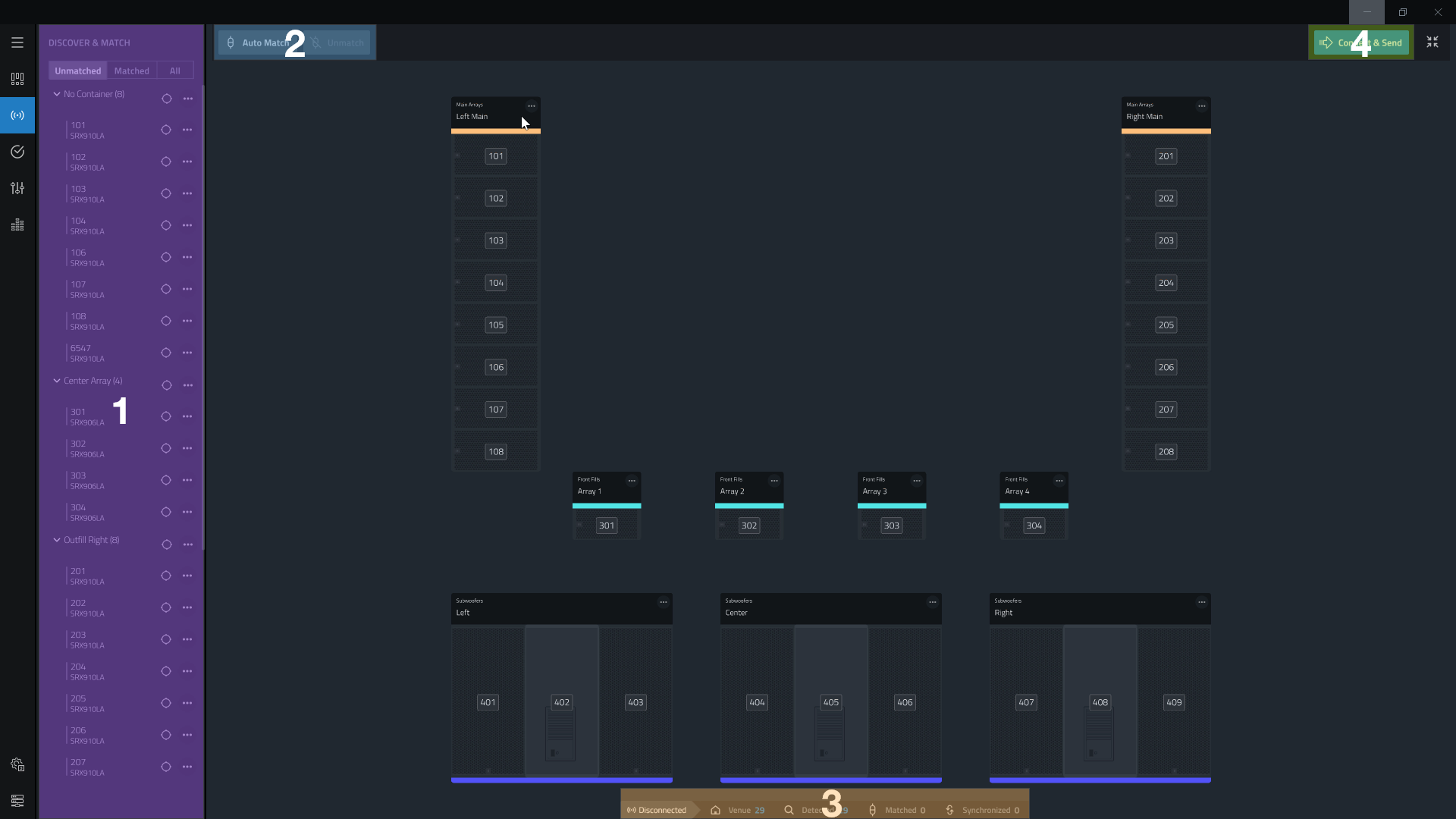
| Name | Function | |
|---|---|---|
| 1 | Discovered Devices list | Devices that are listed here have been found on the selected network and are ready to be matched to virtual devices in the workspace. |
| 2 | Matching Controls | Used to Auto Match or Unmatch devices. |
| 3 | Status Bar | Provides information on the current connectivity and synchronization status between the software and the physical devices being controlled. |
| 4 | Connect & Send button | Synchronizes the matched devices. |
Matching Devices
The first step in synchronizing a disconnected system design with the physical devices found on the network is matching the devices found in the Discovered Device list with the devices in the workspace. This can be done by manually matching individual devices or using the Auto Match button above the workspace. If no devices are shown in the Discovered Device list, it is possible that the device running Performance Software has an incorrectly configured network adapter or the adapter has not yet been defined in the software Settings.
Note: Devices with firmware that the software does not recognize as compatible will not be able to match with virtual devices. Devices with incompatible firmware will have a red incompatible firmware icon next to them.
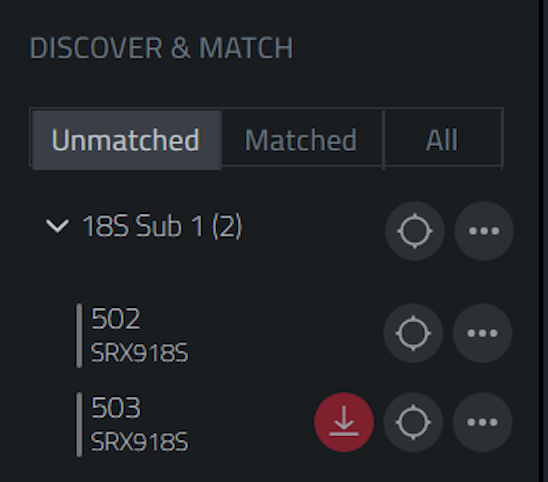
Only software and firmware that has been designed to work together will be compatible. Use the "Check for Updates" option in the Main Menu to get the latest firmware and software and use Updating Device Firmware to update the firmware on each device.
Manually Matching Devices
Devices found within the Unmatched column of the Discovered Device List can be dragged on top of a matching device type (regardless of whether or not the HControl IDs match) and the software will create a new match.
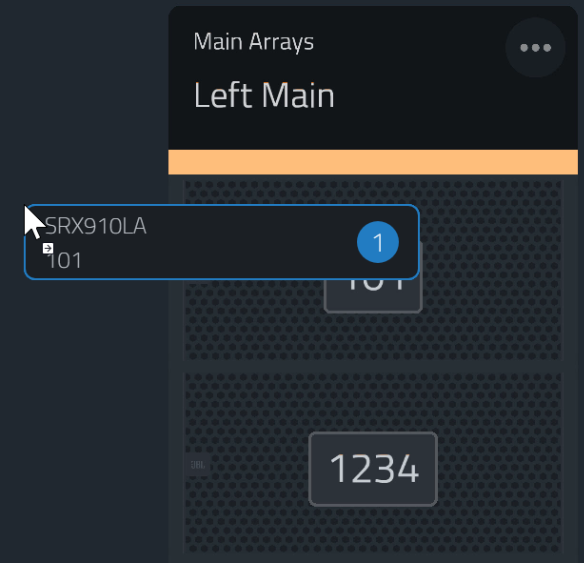
The matching behavior of the software for manual matches is as follows:
Device Type - If the device type of the discovered device and the device being matched to in the Workspace are not identical, the match will be declined.
HControl ID - It is not required that the HControl ID of the discovered device matches the virtual device in the workspace. When HControl IDs are mismatched, the ID of the virtual device will be replaced with the HControl ID of the online discovered device.
Array/Rack Information - If the discovered device was used previously in a separate design it is possible that the array name of the discovered device does not yet match the name of the array in the current design. In this situation the software will prompt the user to overwrite the Array/Rack Information with the new Array/Rack Information from the current design file.
Auto matching Devices
Rather than manually dragging every device from the Discovered Devices column to a device in the Workspace, Devices can be automatically matched all at once but clicking the Auto Match button.

When Auto Match is selected, the Software will attempt to match every Discovered Device to a device in the Workspace with a matching HControl ID. In the event that a device in the Discovered Device column has a matching HControl ID with a device in the workspace but the device types are not the same, the Auto Match for that specific discovered device will be rejected but will not interfere with matching other discovered devices.
Similarly to manually matching, if any one device in the Discovered Device List being Auto Matched to a device in the workspace has Array/Rack Information that does not match that of the device in the workspace, the software will prompt the user to overwrite the Array/Rack information.
Matched Device Behavior
Once devices have been matched, the image of the device in the workspace will update to include a set of blue bars and a Gray Status Indicator. The Gray color indicates that a device on the network has been matched with the device in the Workspace but is still in an offline state, meaning it has yet to be synchronized.
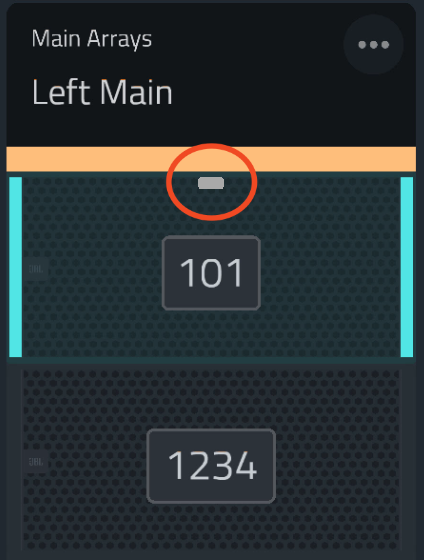
Once a device has been matched it will no longer show up in the Un-matched column of the Discovered Device List and the Status Bar at the bottom of the screen will update to show the devices matched.
Connecting to Devices
After devices have been matched, the next step is to connect and synchronize the physical devices with the virtual devices in the system design. This is done by clicking the blue Connect and Send button above the workspace.

When the button is pressed, for all matched devices, Performance will send all of the device settings (Preset, Gain, EQ, Etc.) to the physical device. The Status Indicator on each device in the workspace should now be Green indicating that the device is Connected and in sync. Any change to the device in the workspace in Test, Tune, or Show Mode will now update the Physical devices in real time.
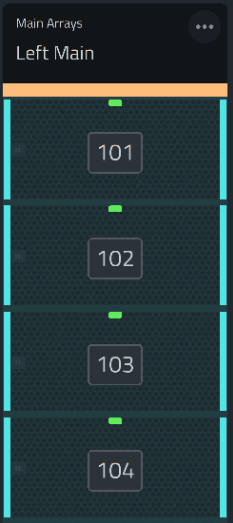
Additionally, the Status Bar at the bottom of the screen will now show a green Online indicator to alert user's that the system is connected and synchronized.

Disconnecting from Devices
To disconnect the virtual devices from the physical devices, click the disconnect button. Any parameter changes made to the virtual devices in any of the Modes will now no longer update the physical devices found on the network.

Updating HControl IDs
For convenience, the HControl IDs of the devices in the workspace can be updated within Connect Mode without having to return to Design Mode. To change the HControl ID of any device, simply double click the ID on the face of the device and enter a new ID.
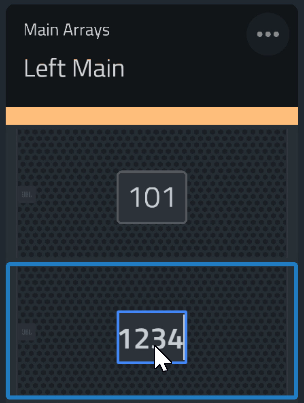
Whether or not the design is Connected will dictate the behavior of the device when a new HControl ID is entered.
Disconnected HControl ID Change Behavior
If a device is matched but not connected (gray Status Indicator), the match will be broken as the change will only apply to the virtual device and the HControl IDs will no longer match, thus invalidating the match.
Connected HControl ID Change Behavior
If a device is matched and connected (green Status Indicator), the virtual and hardware device will be changed synchronously and the match will remain.
Unmatching Devices
Discovered Devices that have been matched to devices in the Workspace can be unmatched. To do this, select the device in the workspace you wish to unmatch and select the Unmatch button at the top of the workspace. This will break the link between the Discovered Device and the device in the workspace, the Discovered Device will return to the Unmatched category of the Discovered Devices list. To unmatch multiple devices at the same time Multiselect behavior can also be used.

Automatic Unmatching
In certain cases, a device will be automatically unmatched. This happens when the software and the device have fundamental differences that should be resolved by rematching and sending to the device. Examples of the changes that can cause an unmatch include, performing a system reset or DSP reset from the LCD, matching the device with a different venue file or a different version of a file.
