Building Systems
Every device added to the Workspace belongs to one or more automatically generated or user-defined groups. These groups create a control hierarchy that allows operators to quickly make changes across multiple devices
System Groups
System groups define linked arrays of an audio system and help Performance to set up common, expected rules around how parameters should be linked, controlled and displayed between the arrays and speakers within. A System Group is automatically created when any speaker is added form the Library to the Workspace. Every System Group contains at least one array with at least one speaker.
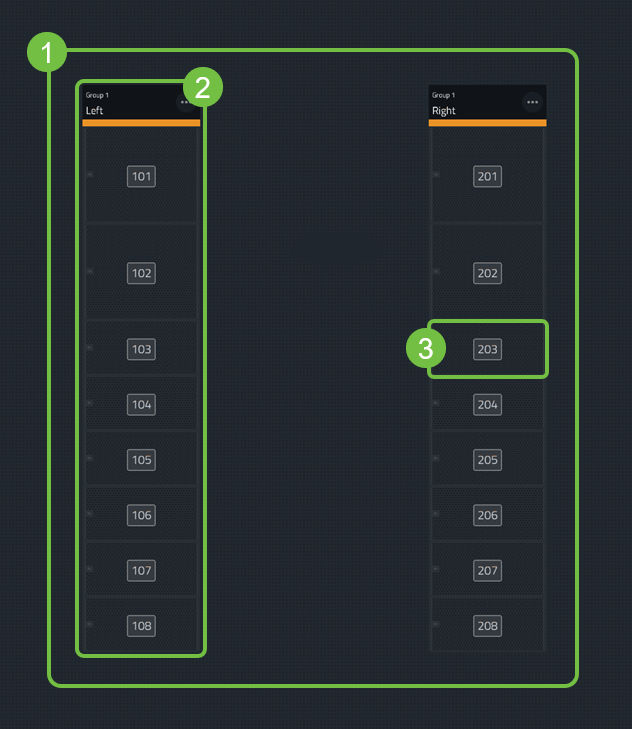
| Name | Function | |
|---|---|---|
| 1 | System Group | Group of identical arrays performing a similar task. For example: Mains or Outfills. |
| 2 | Array | A collection of Speakers performing a similar tasks combined into one grouping. For example: Left Main or Right Outfill. |
| 3 | Speaker | Individual speakers elements that make up each Array. |
Adding Speakers
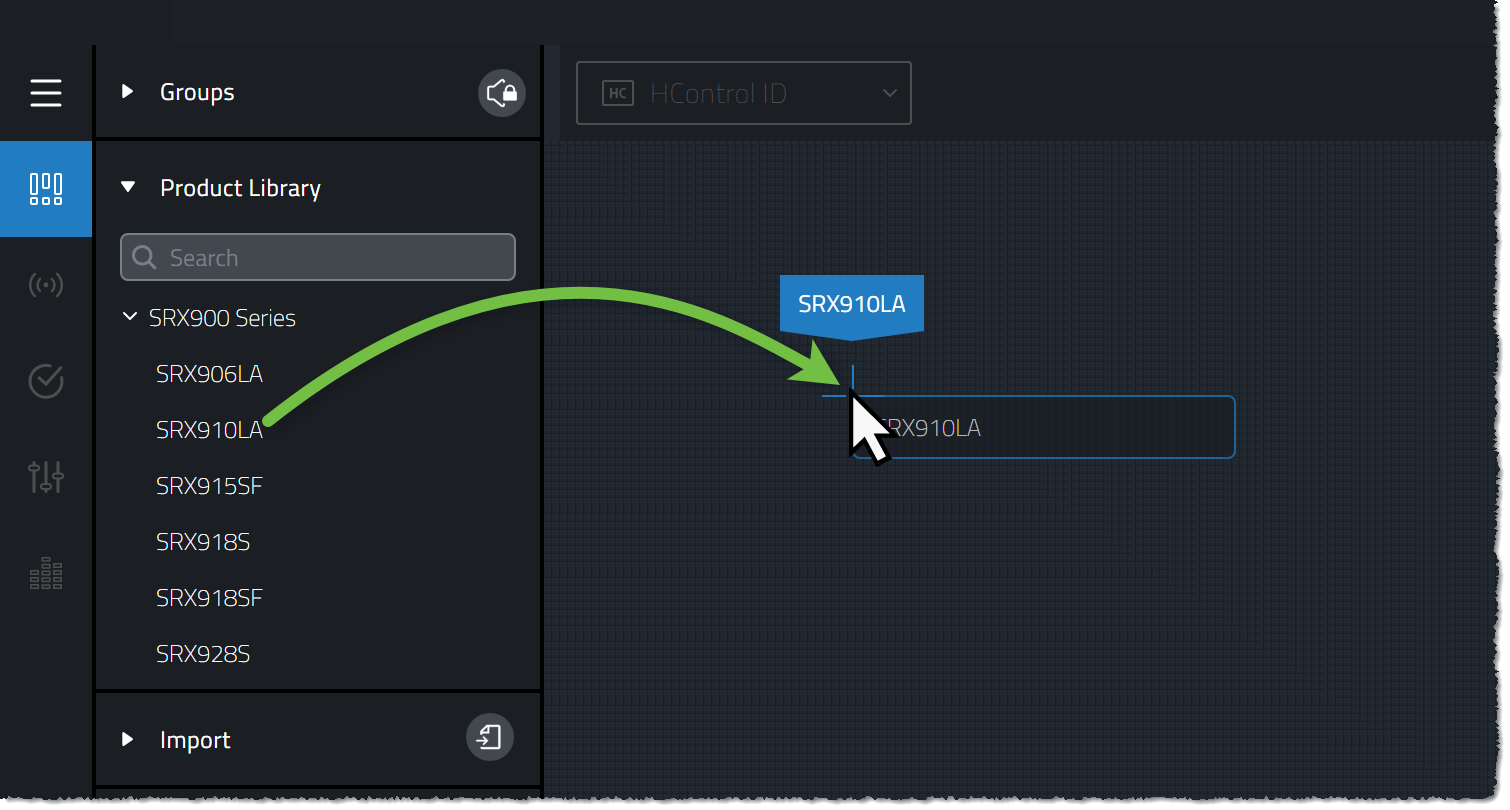
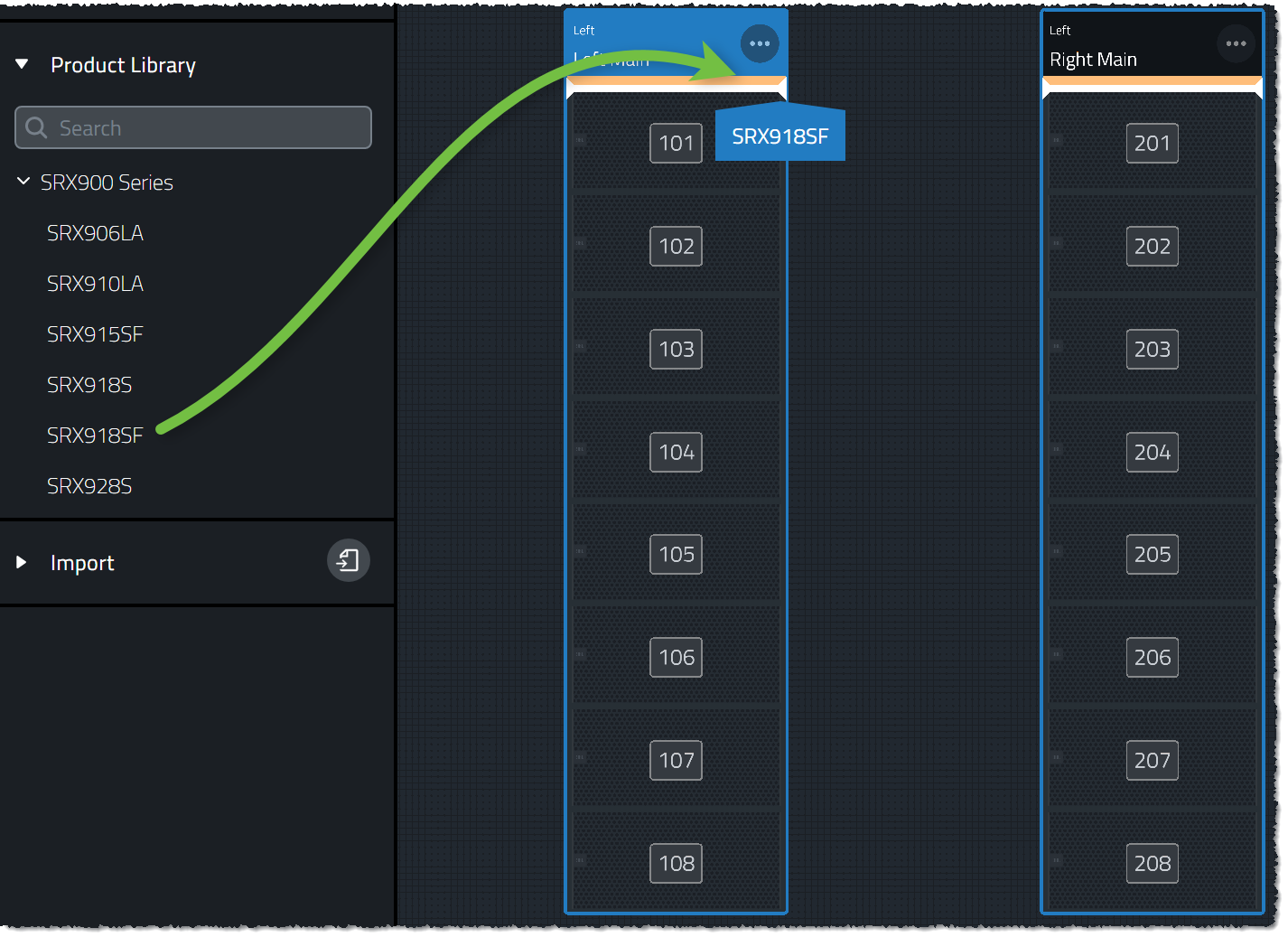
To create a new System Group, drag a product from the Library into the Workspace.
After adding any product to the Workspace, a dialog box will pop-up to help define the new System Group. The options in the dialog will vary depending on whether the product added is a full-range speaker or a subwoofer.
Full Range
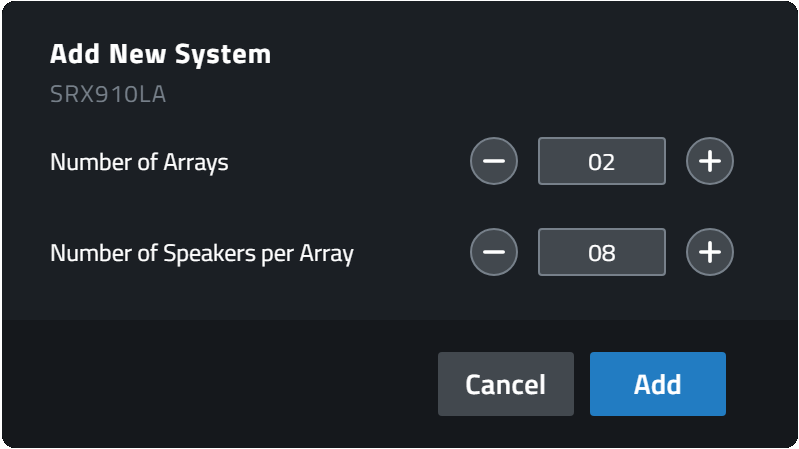
| Option | Function |
|---|---|
| Number of Arrays | Defines how many unique arrays are part of the new System Group |
| Number of Speakers per Array | Defines how many individual speaker elements are inside each Array |
Subwoofer

| Option | Function |
|---|---|

|
This option determines whether the new Subwoofer System Group will be flown or Distributed. This control is only shown for products that can be both flown and ground deployed. |
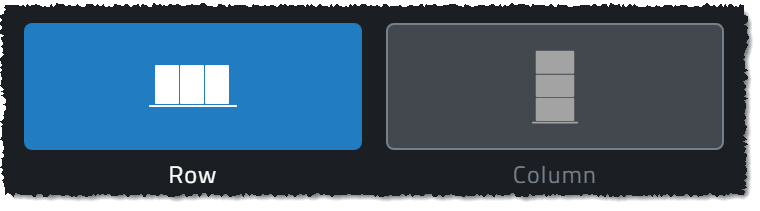
|
This Control is only shown when creating new Distributed Subwoofer System Groups and determines the product orientation. This parameter can be changed later in the Properties Panel. |
| Number of Arrays | Defines how many unique arrays are part of the new Subwoofer System Group |
| Number of Subs per Array | Defines how many individual speaker elements are inside each Subwoofer Array |
| Link Array Hardware Configurations | When selected, all Arrays in a System Group will be populated with identical quantity, orientation and product type. If this check box is de-selected, each Subwoofer Array is free to be filled with a unique product configuration with respect to the symmetry options selected in the Properties Panel. Mixed product System Groups can be configured using the Properties Panel. |
Mixed Type Flown Arrays
Compatible subwoofer and full-range speakers can be combined into mixed-flown arrays. Mixed Arrays provide singular array EQ and Mute controls for each component type but still provide required versatility for each section.
To create a mixed flown array, simply drag and drop a compatible system on top of another flown system. A white line will appear to show you where your new speakers will drop in the existing array.
Quantity of each speaker type can be adjusted in the Properties Panel.
System Group Symmetry
When a new System Group is added to the workspace, it will by default be configured with Inside Out Symmetry. Users can choose to have array parameters within a System Group follow one of three Symmetry options which can be adjusted in the Properties panel.
The symmetry linked parameters are as follows:
-
Array Calibration Controls - Filters like Array Size Compensation and Throw Distance Compensation defined within the Calibration View.
-
Gain Controls - Gain values of the individual devices between arrays in a Group defined in the Gain View.
-
Delay Controls - Delay values of the individual devices between arrays in a Group defined in the Delay View.
Inside Out Symmetry
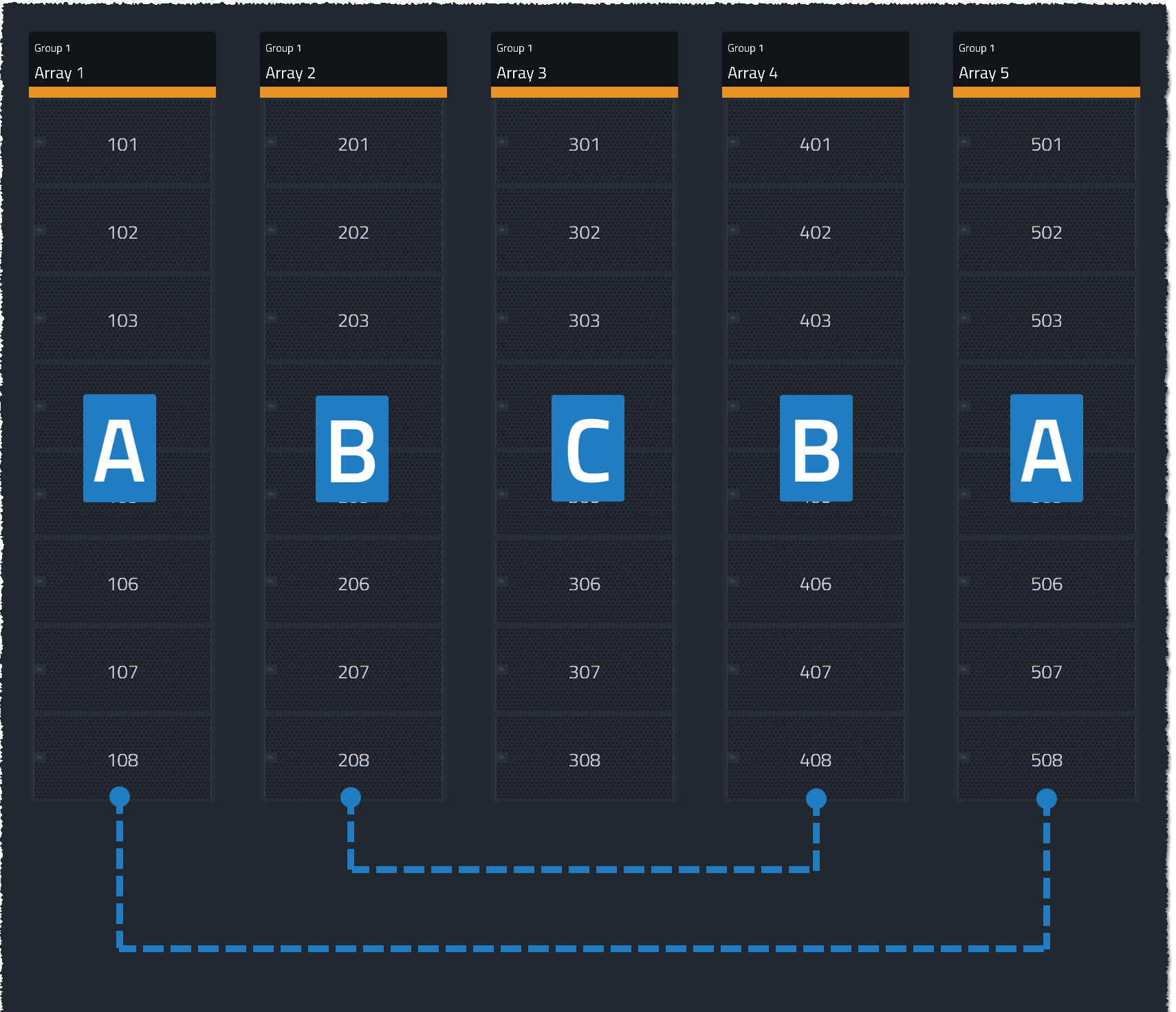
With Inside Out Symmetry enabled, making a change to any of the symmetry linked parameters will effect the arrays symmetry partner equally. An example of how symmetry partners are determined in a (5) Array Group can be seen below, in the example the 5 Arrays are split into 3 distinct symmetry Groups: A, B and C.
All The Same Symmetry
Making a change to any of the symmetry linked parameters will effect every Array equally. An example of how symmetry partners are determined in a (5) Array Group can be seen below, in the example the 5 Arrays are split into 1 distinct symmetry Group.

No Symmetry
Making a change to any of the symmetry linked parameters will effect only the selected array and have no contribution to any other array in the System Group. An example of how symmetry partners are determined in a (5) Array Group can be seen below, in the example the 5 Arrays are split into 5 distinct symmetry Groups: A, B , C, D and E.

Caution:Performance does not validate mechanical safety. Be sure to following the rigging guidelines in each products Rigging Manual and verify the safety of every unique configuration in Venue Synthesis before attempting to mechanically deploy any speaker configuration.
