Groups Panel
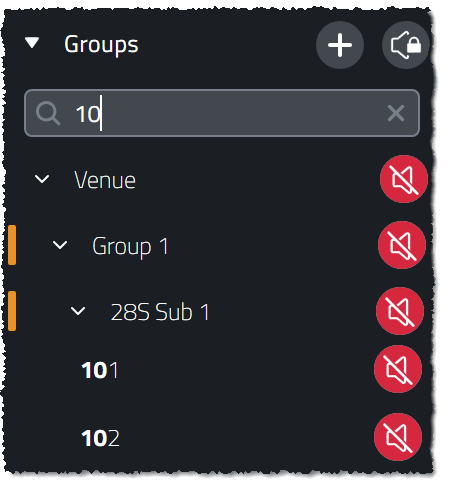
The Groups Panel is visible on the left hand side of the application while in Design,Test, Tune, and Show Modes. The Groups panel provides selection and mute control over various grouping resolutions ranging from; all devices in the venue, to any single device.
Groups Panel Hierarchy
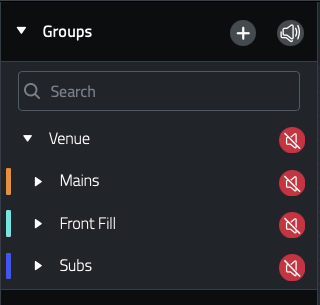
Any parent group listed in the panel can be expanded to reveal the contributing child groups or devices by clicking the drop-down arrow
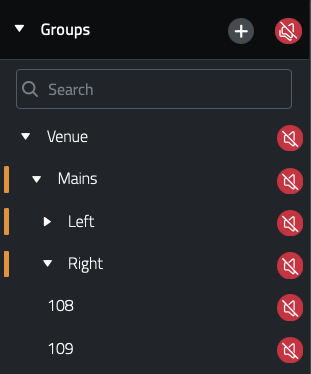
The arrangement and grouping of devices within the Groups Panel is automatically created based on the order and system group membership of the devices. The hierarchy is built as follows:
-
Venue - Affects all devices within the venue
-
System Group - Affects all devices within the System Group added to the workspace
-
Array - Affects all devices within the array
-
Device 1 - First device within the Array
-
-
Device 2 - Second device within the Array
-
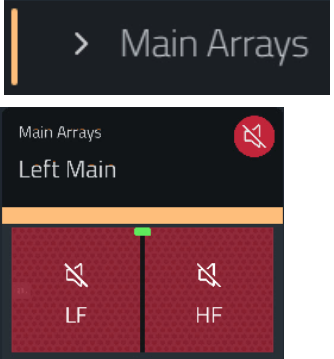
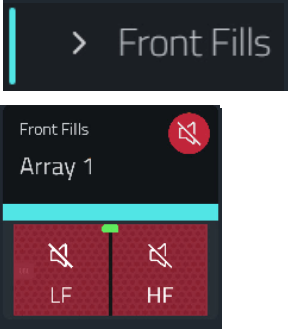
System Groups have a color bar to the left of the System Group name that corresponds with the System Group in the workspace which has a matching color.
|
|
Muting or Un-Muting Devices
Each Parent Group or visible device within a group has a Mute icon next to it. Clicking this icon will toggle the mute state to all devices at all levels encompassed by the parent group whose mute state was modified.
 | Muted |
 | Un-Muted |
System Mute
On press, the System Mute button at the top of the Groups Panel will mute all devices in the system. It will retain the state of the system prior to muting.
Pressing the button again will restore the system to the previous state.
If the system mute states are modified through individual mutes, the retained state is purged and the system mute state will release.
In Show Mode, toggling the System Mute will introduce a confirmation dialog to avid accidentally muting and unmuting the system.
 | System Mute Enabled |
 | System Mute Disabled |
Creating Custom User Groups
Custom User Groups can be created in the Groups Panel for controlling the mute state of a custom selection of bandpasses that can span between the default arrays and System Groups.
Create a New User Group
Select the
 icon in the Groups Panel header.
Select the speakers to include in the new User Group. All symmetrically linked speakers will be added. To add a single speaker, symmetry but be set to None in the properties panel, in Design Mode.
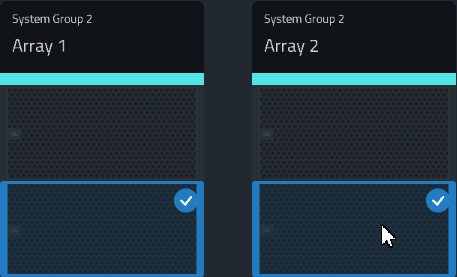
Click the
 button to save the new User Group
Edit an Existing User Group
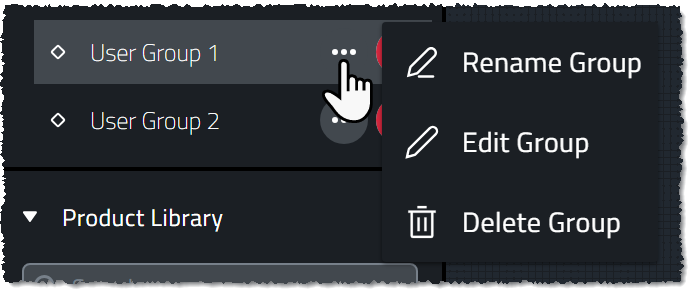
Select the  Icon next to any User Group to Edit, Delete or Rename it.
Edit Group Names
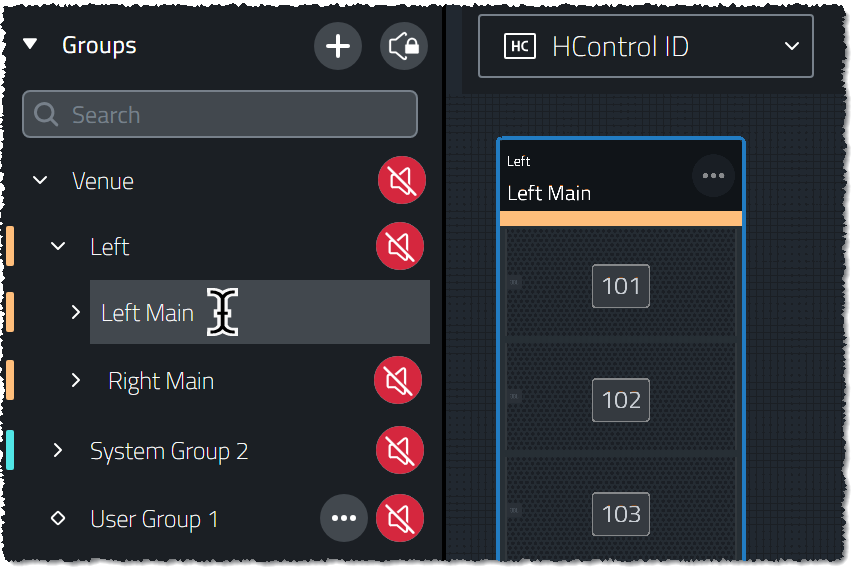
Group names can be changed by double clicking on the group and typing a new name. Changing the name of a System Group, or Array will update the Array Header to reflect the new name as well.
Searching the Groups Panel
The Search Bar at the top of the Groups panel can be used to located nested Devices and Arrays or find System Groups in larger files.