
Calibration View
Calibration view has two dedicated, user-adjustable filters designed to quickly tailor the tonal response of a line array. Each filter serves a specific intended purpose and accelerates the tuning process. When connected and in-sync, the changes made to the devices are in real-time, if the system is disconnected, the changes will be sent to the devices once they are connected.
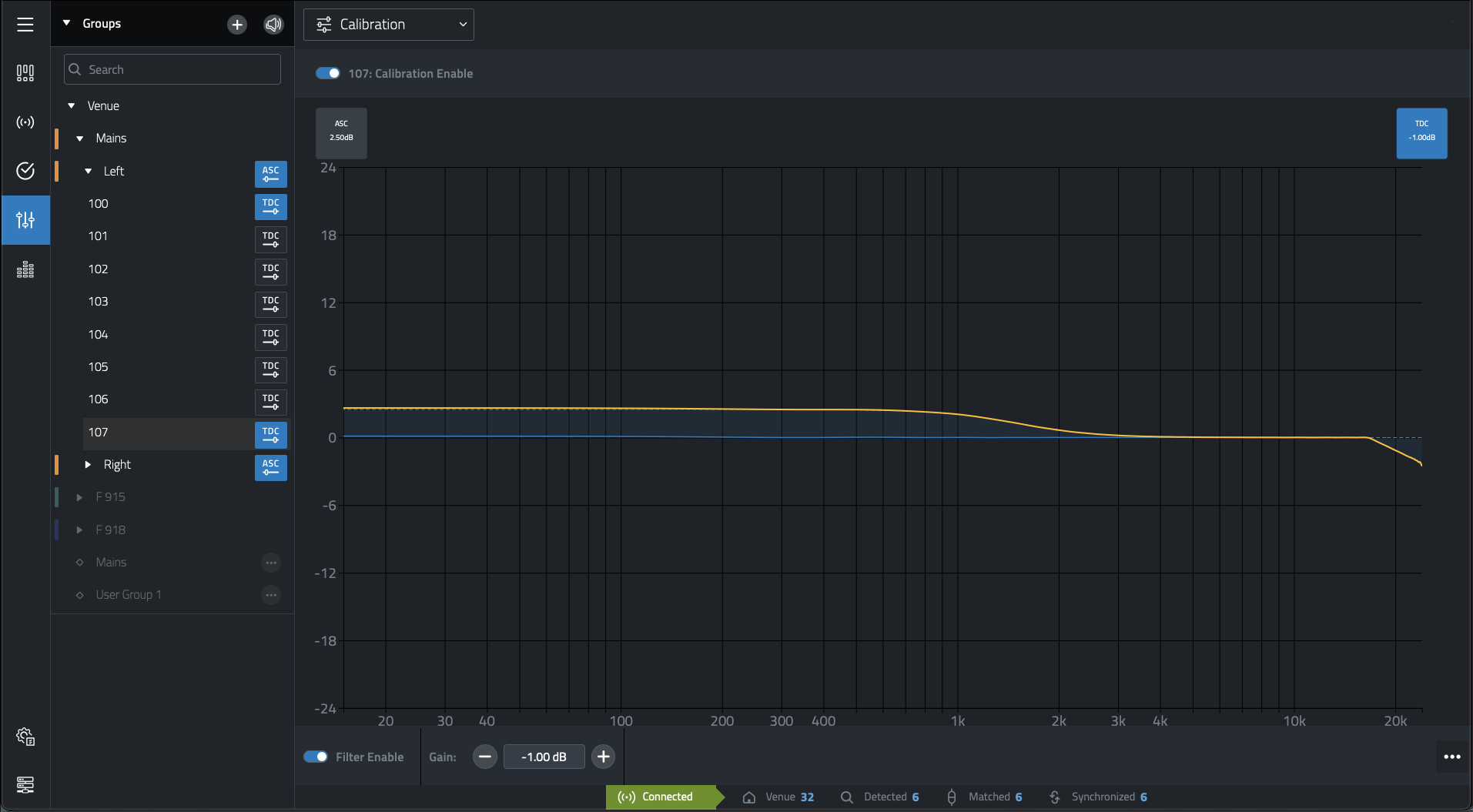
Filter 1: Array Sized Compensation
The Array Size Compensation (ASC) filter is designed to work in conjunction with the array presets and it can be used to reduce the energy created by the coupling effects of arrays in the mid and low frequencies, and bring the array closer to the desired tonal response. ASC values can depend on the shape of the array, the acoustics of a room, or acoustic preference. Adjust ASC up or down to achieve the desired tonal result
The effect of the ASC filter can be visualized below:
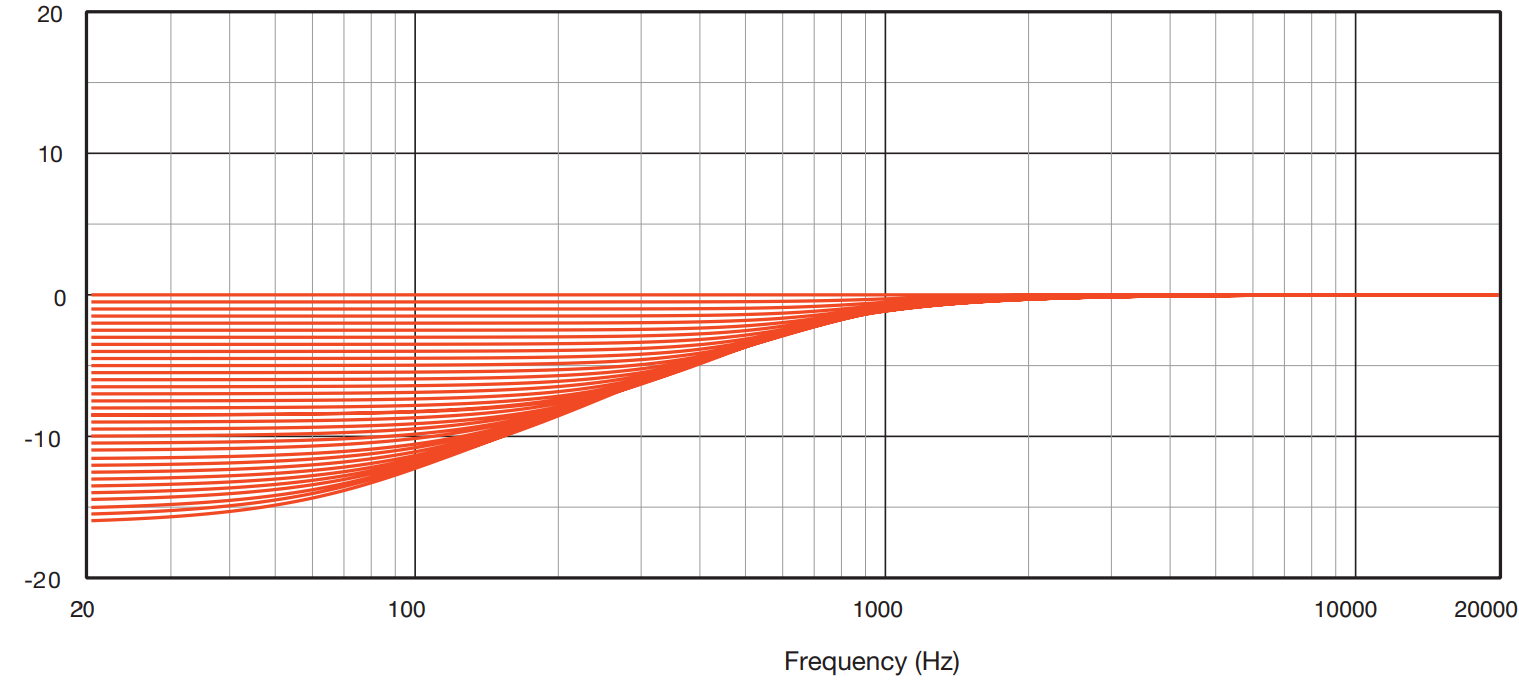
Applying Array Sized Compensation
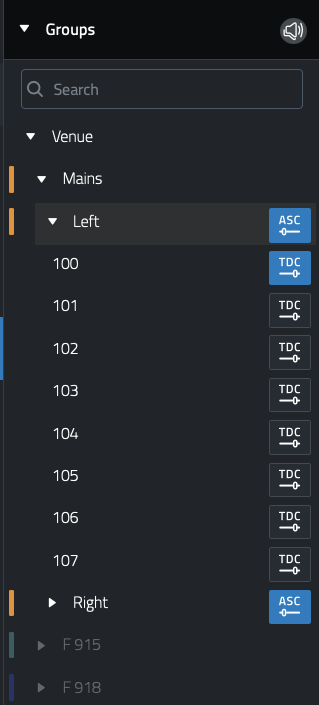
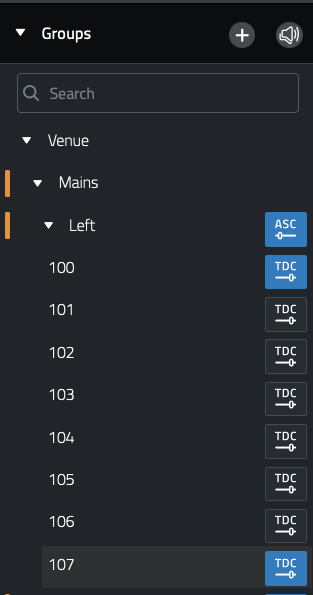
The ASC filter is applied globally to all devices within an array. To apply ASC expand a System Group in the Groups Panel and select the Array you want to apply to filter to. The  Icon indicates an Array that is available to apply ASC to by selecting it in the Grouping Panel.
Once the correct array is selected, the Workspace will show a frequency response graph, use the gain control box at the bottom of the graph to apply an ASC increase or reduction.

The effect of the ASC filter will be visible on the Frequency response graph along with the effect of the TDC Filter if one is applied
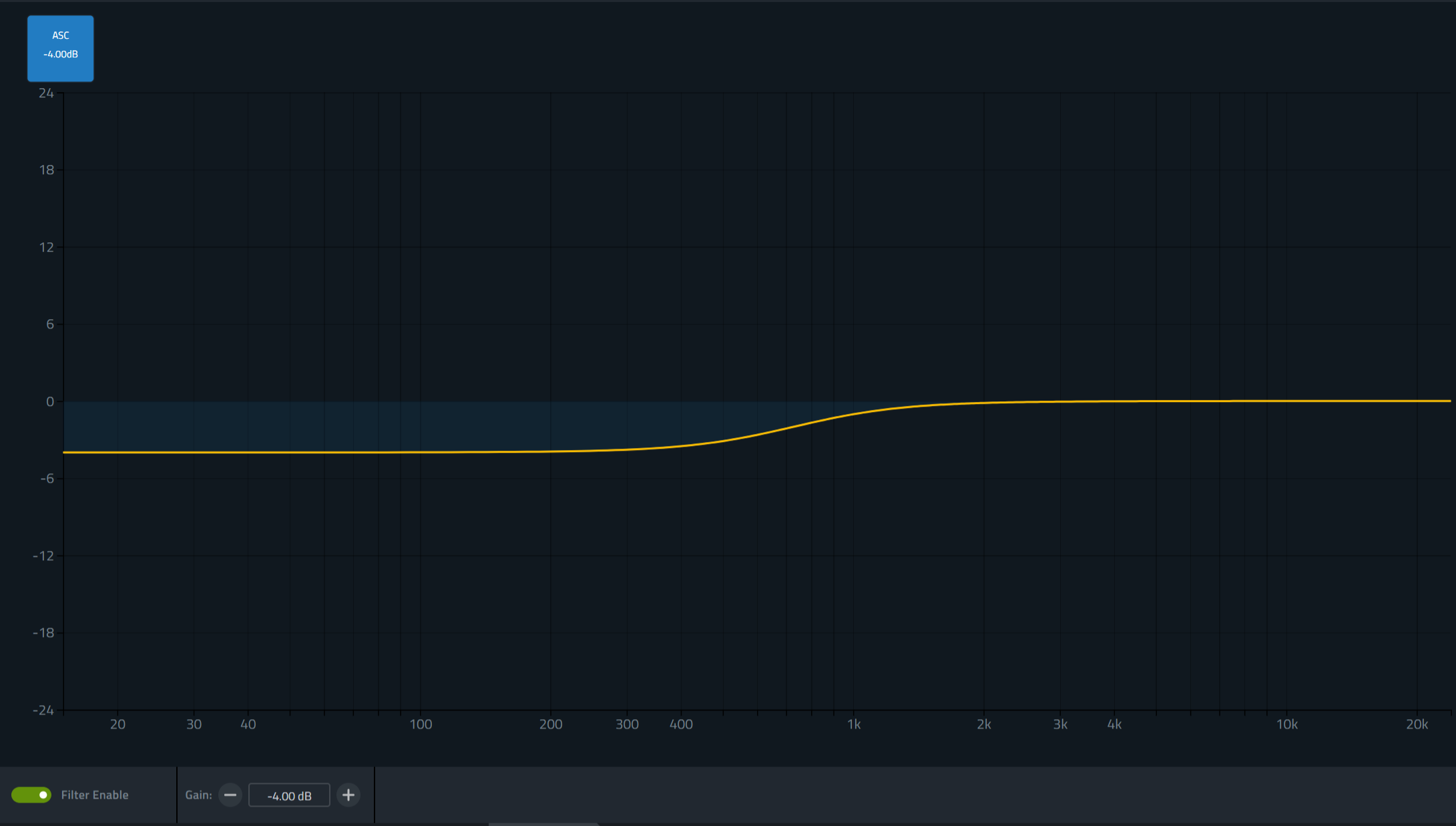
The ASC filter can be toggled on or off using the Filter Enable button at the bottom of the screen

The ASC icon in the Groups Panel will turn blue when an array has active ASC being applied. 
Filter 2: Throw Distance Compensation
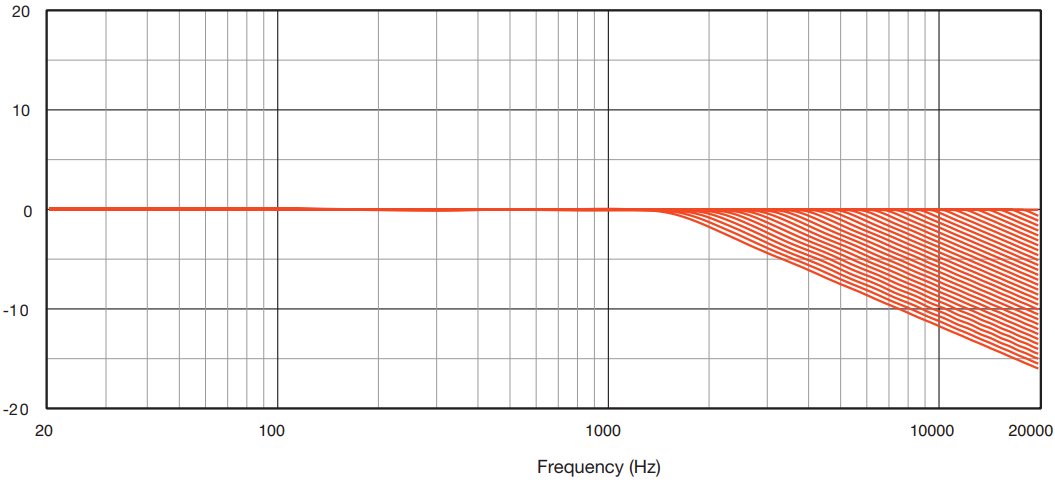
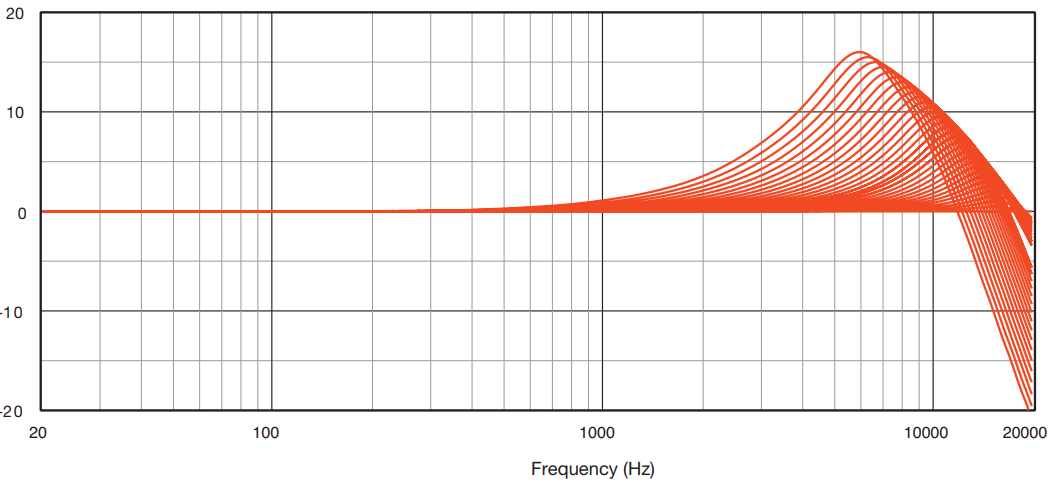
The Throw Distance Compensation (TDC) filter provides a linear phase, EQ and per-cabinet gain adjustment to optimize each array element for the air absorption effects of distance. TDC is typically applied on a per-cabinet basis, depending on the desired outcome, with the cabinets throwing further distances typically needing an HF boost, and cabinets throwing short distances needing HF reduction.
Example of TDC reduction:
Example of TDC increase:
Applying the TDC filter
The TDC filter is applied to devices individually within an array. To apply TDC to a speaker, expand a System Group in the Grouping Panel, then expand the array that contains the speaker(s) you want to apply to filter to. The  Icon indicates a device that is available to apply TDC to by selecting it in the Grouping Panel.
Once the correct speaker is selected, the Workspace will show a frequency response graph, use the gain control box at the bottom of the graph to apply an TDC increase or reduction.
The effect of the TDC Filter will be visible on the frequency response graph along with the effect of the ASC Filter if one is applied.
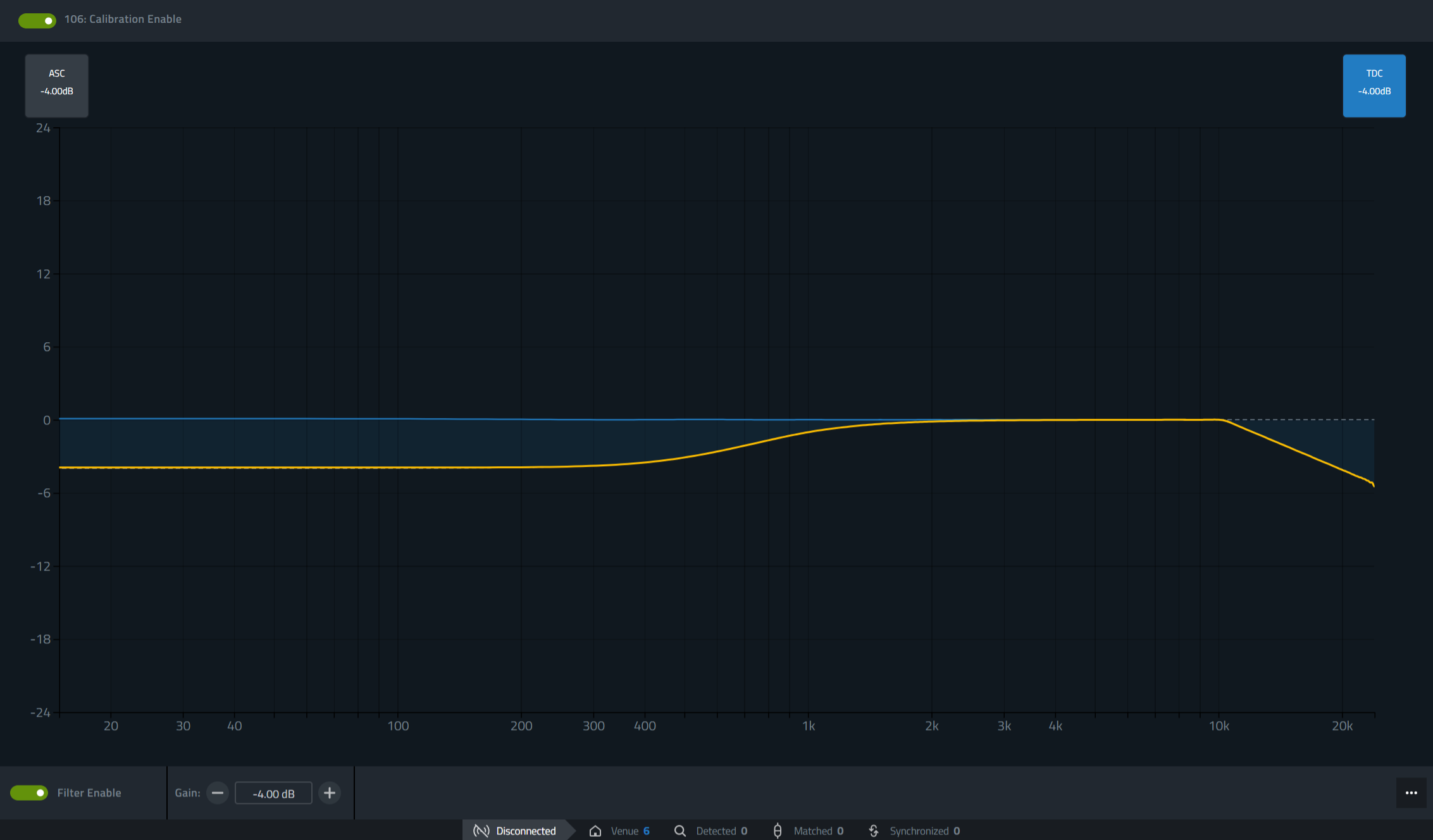
The TDC filter can be toggled on or off using the Filter Enable button at the bottom of the screen.
The ASC icon in the Groups Panel will turn blue when an array has active ASC being applied. 
Calibration Filter Example

