|
Smart SelectThe Smart Select feature is designed to help understand and visualize the relationship of controls in Performance. |
When an item is selected, Performance automatically highlights other related items. This behavior makes it easier to understand how speakers, Arrays, and System Groups are linked across various Array and Symmetry settings. Smart Select is especially useful in large designs where a single device may belong to multiple groups or symmetry relationships.
How Smart Select Works
Performance organizes systems into a hierarchy of related objects, including:
-
A Venue Group
-
Devices
Selection Types
Performance distinguishes between:
-
Direct Selection - The object you directly clicked or selected.
-
Relational Selection - Objects that are related to the primary selection through grouping, hierarchy, or symmetry.
| Visual | Description |
|---|---|
|
|
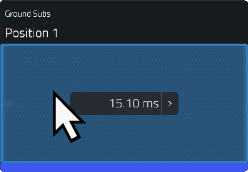
Device is Directly Selected |
|
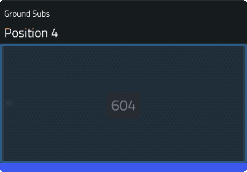
Device is Indirectly Selected |

|
Row Directly Selected |

|
Row Indirectly Selected |

|
Value Directly Selected |

|
Value Indirectly Selected |

|
Child in "Array 1" directly selected |

|
Child in "Array 1" indirectly selected |
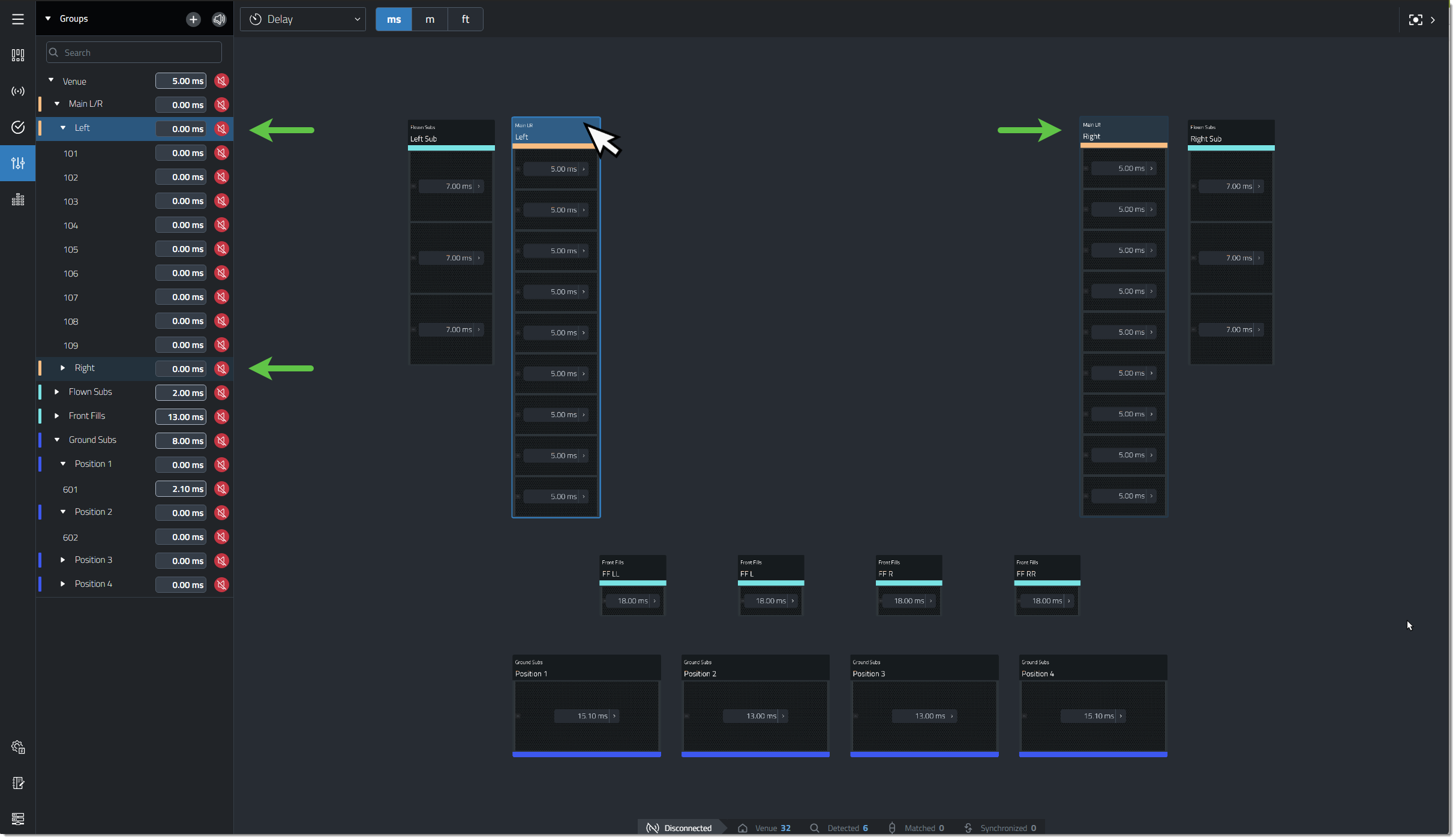
Example 1 - An Array is directly selected in the Workspace, the matching Row is highlighted in the Groups Panel as a direct selection. The Symmetry partners are highlighted in both the Workspace and the Groups Panel as an indirect selection.
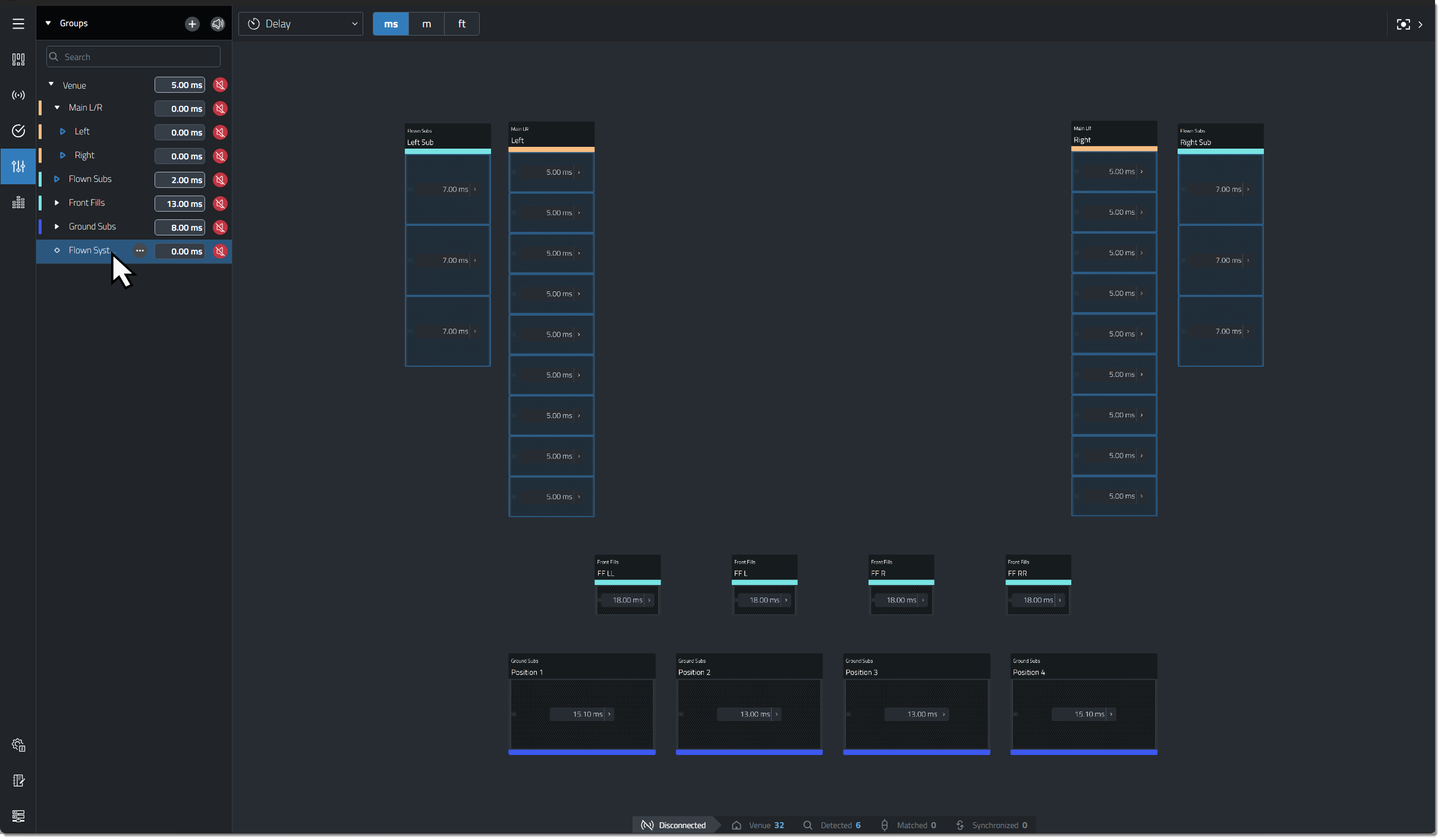
Example 2 - A User Group is Directly Selected in the Groups Panel. All speakers that are members of the User Group are highlighted in the Workspace with an Indirect Selection. Hollow blue arrows next to the System Groups and Arrays indicate that Indirectly Selected items exist within the collapsed parent hierarchy. Expand the arrows to reveal the Indirectly Selected speakers.
Example 3 - A single speaker is Directly Selected in the Workspace, and shown as a Direct Selection in the Groups Panel once the System Group and Array parents are expanded. It's symmetry partner is also shown as Indirectly Selected in both the Workspace and the Groups Panel .
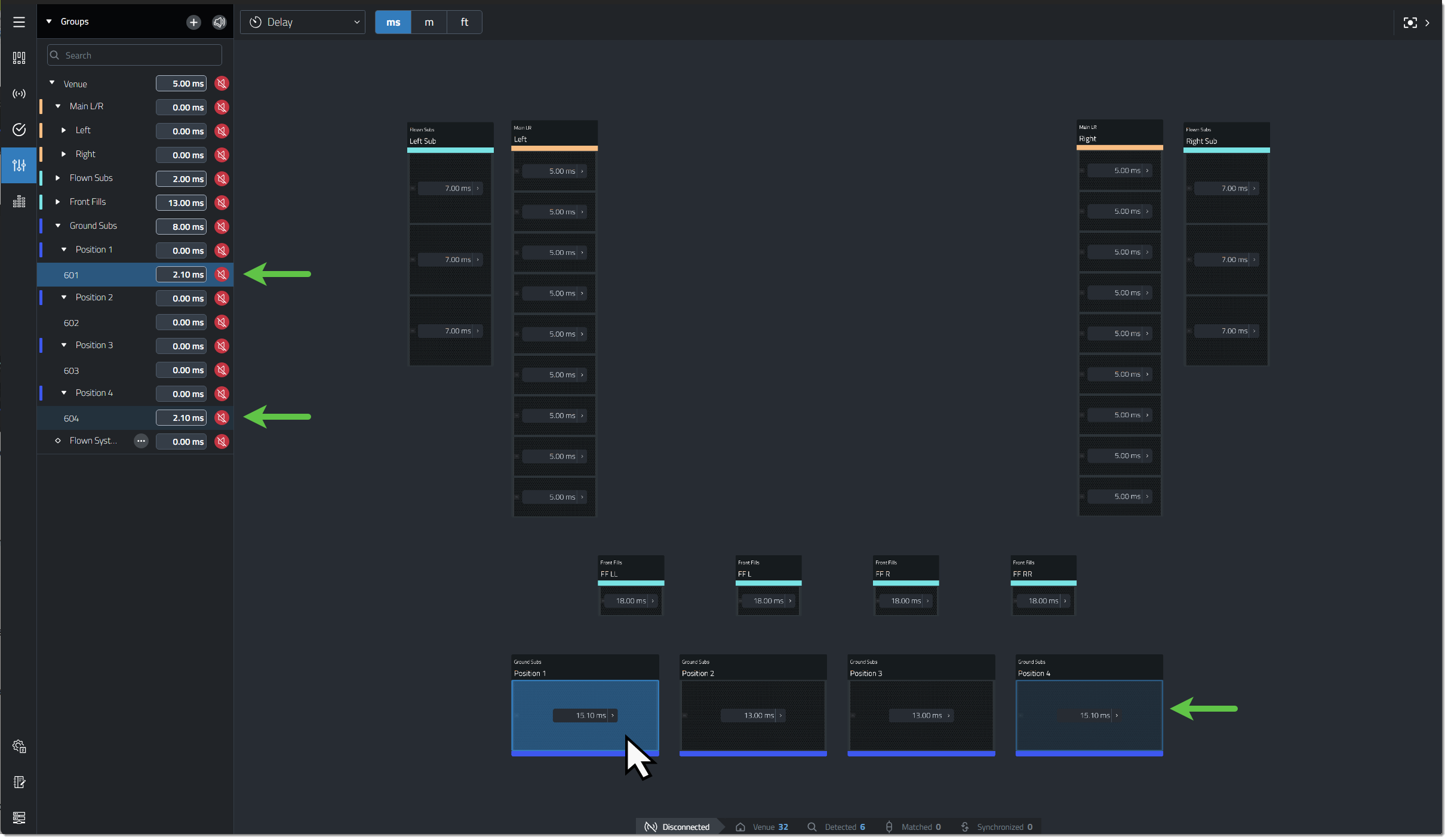
Smart Selection When Editing Values
Selecting an editable value also triggers Smart Selection. When a Gain or Delay value is selected anywhere in the software, a highlighted arrow appears next to the total value of affected devices, indicating the relationship between the selected value and the device.
| Visual | Description |
|---|---|

|
The device does belong to the selected contributor |

|
The device does not belong to the selected contributor |
Example - The Delay value for the Venue Group is being modified. Because every device in the Workspace belongs to the Venue Group, a blue indicator appears next to the total Delay value of every device, indicating that they will be affected by the change.
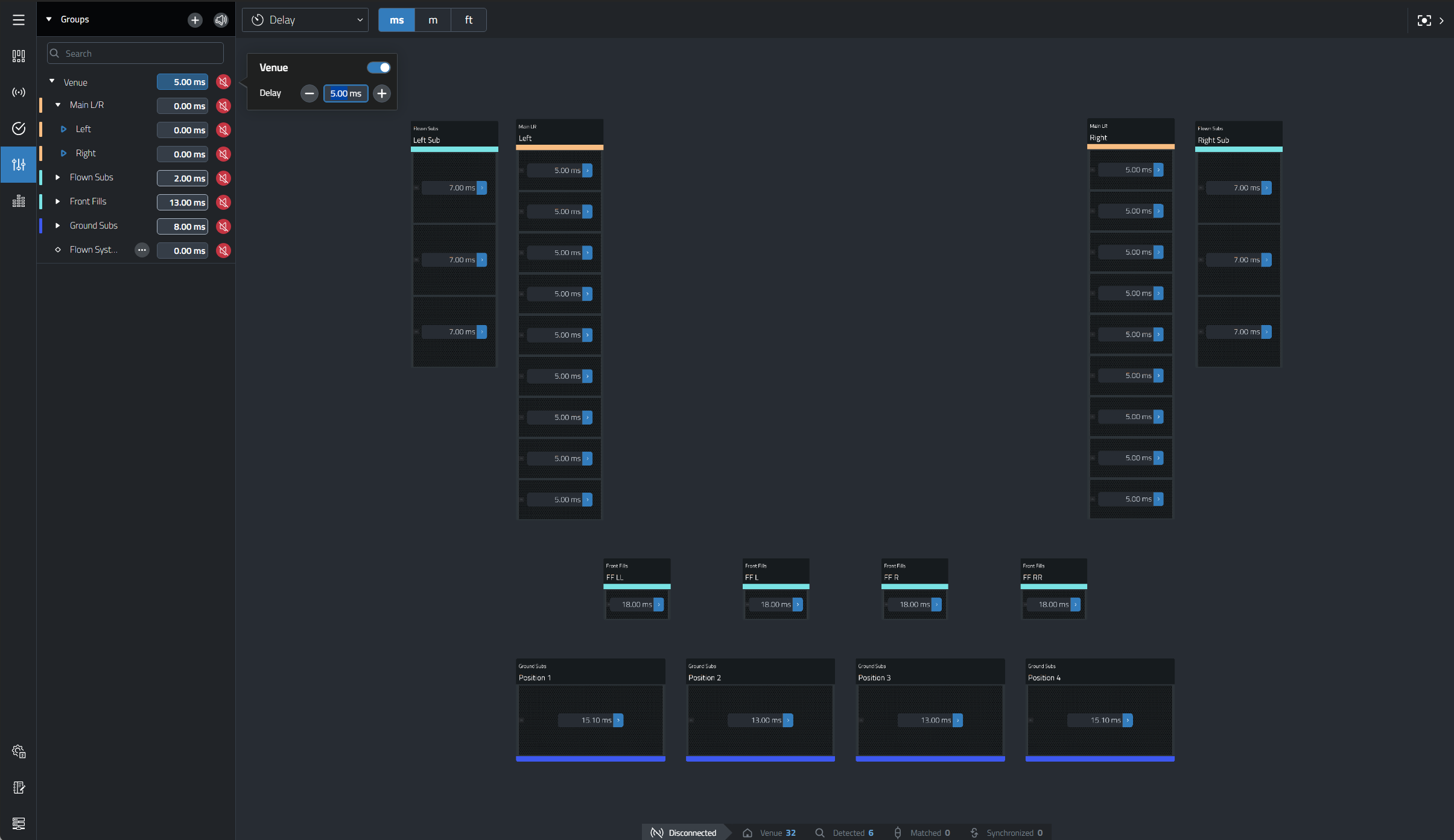
Note on Symmetry
When Symmetry is enabled, Smart Select will display relationships between symmetric objects.
For example:
-
Selecting the left Array of a stereo system may highlight the corresponding right array.
-
Selecting one front-fill position may highlight its symmetric partner.
-
In “All the Same” symmetry mode, selecting one member may highlight all related members.
